
You are using an unsupported browser. Please update your browser to the latest version on or before July 31, 2020.
You are viewing the article in preview mode. It is not live at the moment.
Home > Getting Started (PFM) > First Time Login and MFA Registration
First Time Login and MFA Registration

First Time Sign in and MFA

2

Click in the empty line and enter your email address.
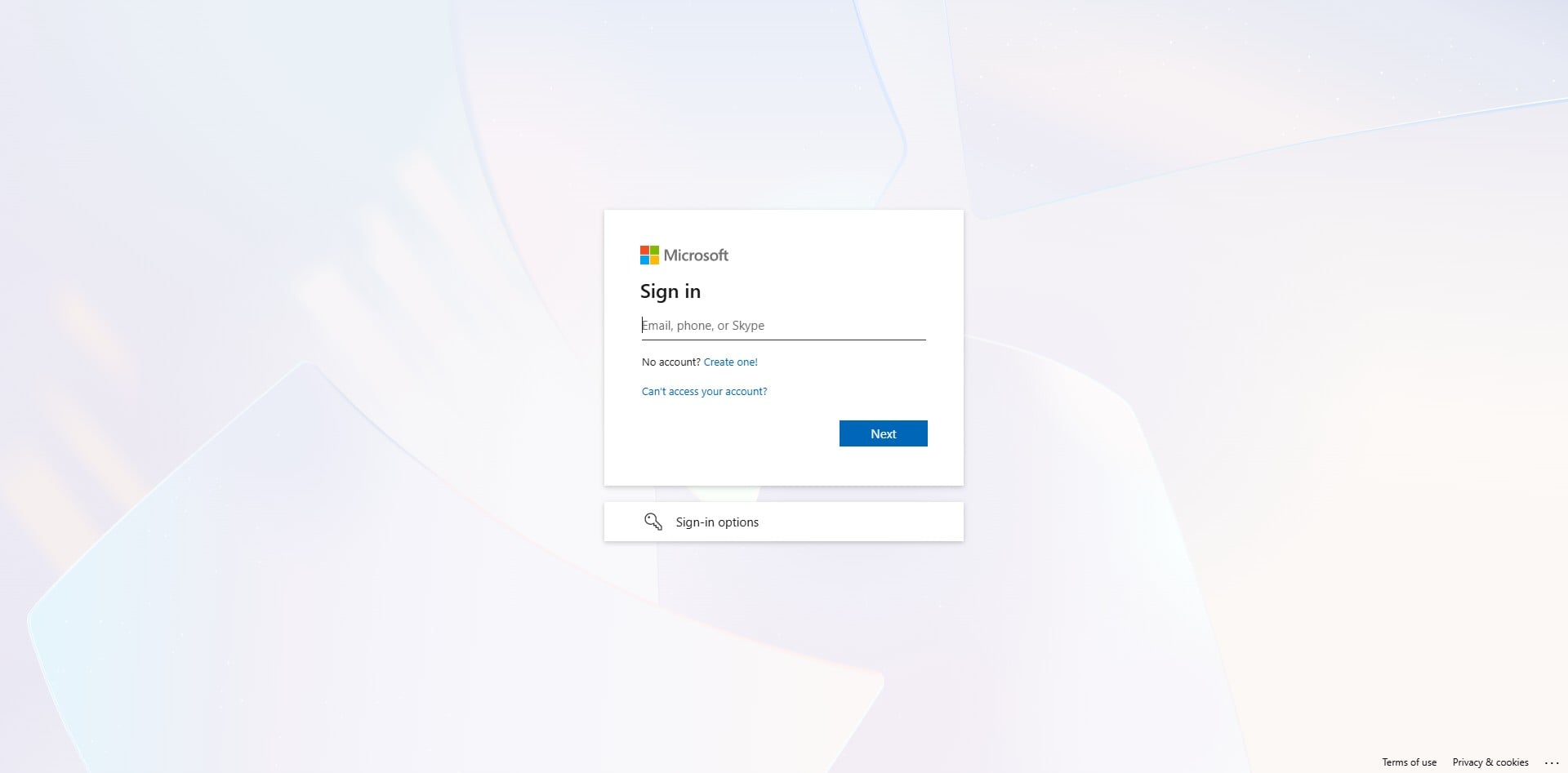
Click in the empty line and enter your email address.
 
3

Click Next
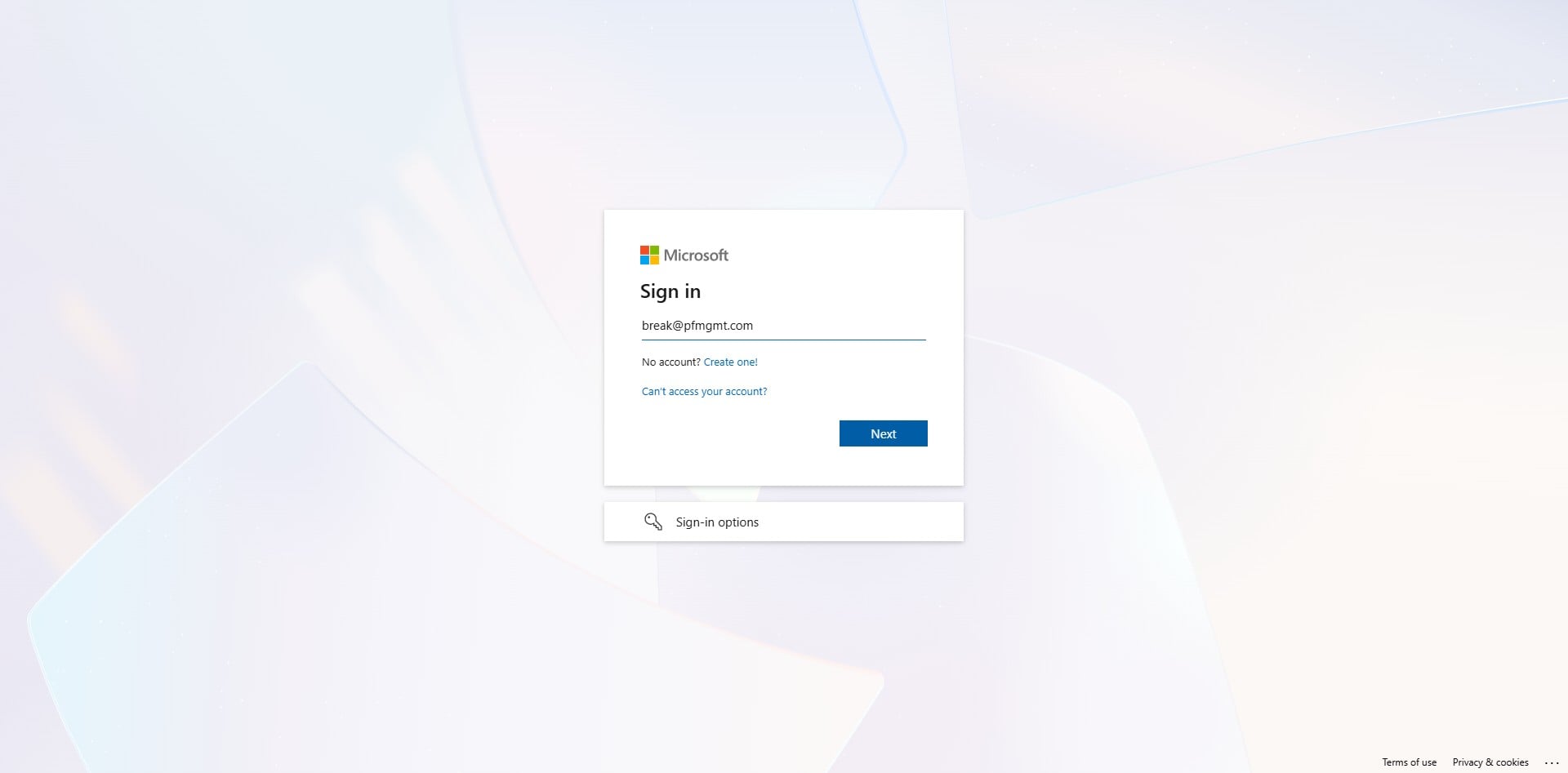
Click Next
 
4

Click in the empty line, enter your password, and click Next.

Click in the empty line, enter your password, and click Next.
 
5

Click Next

Click Next
 
6

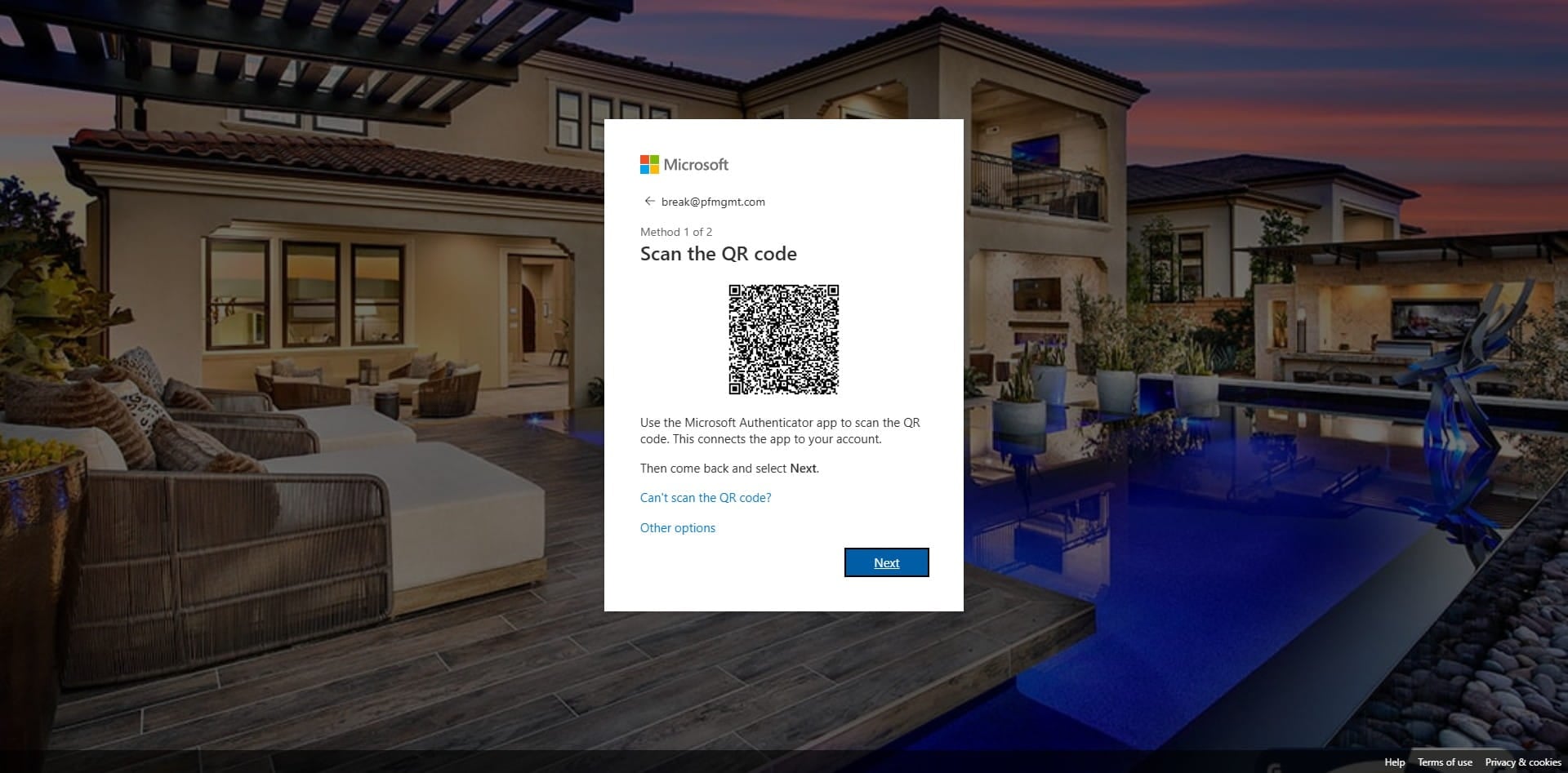
Download the Microsoft Authenticator on your cellphone, then click Next on the computer screen.
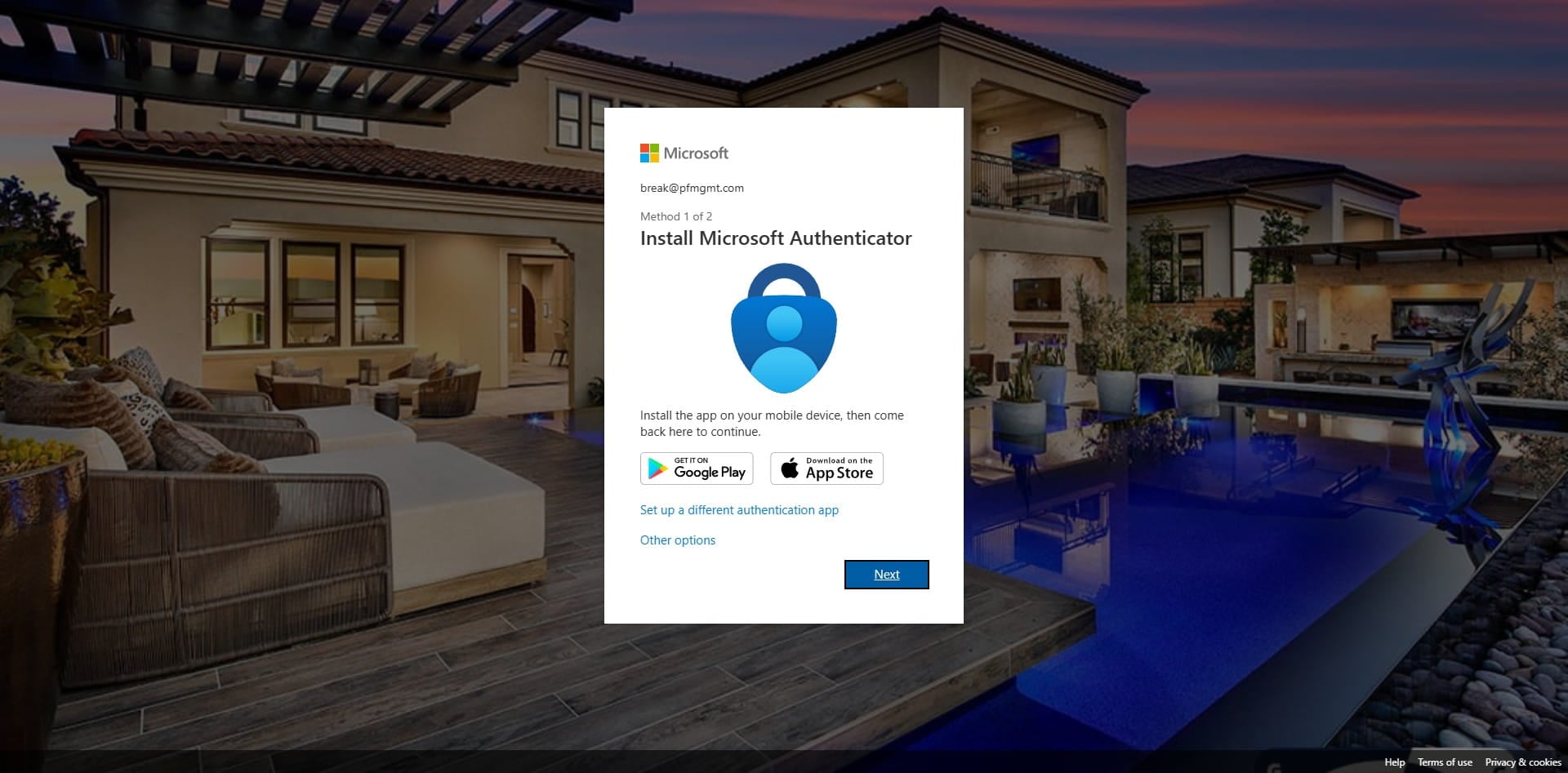
Download the Microsoft Authenticator on your cellphone, then click Next on the computer screen.
 
7

Click on "Next"
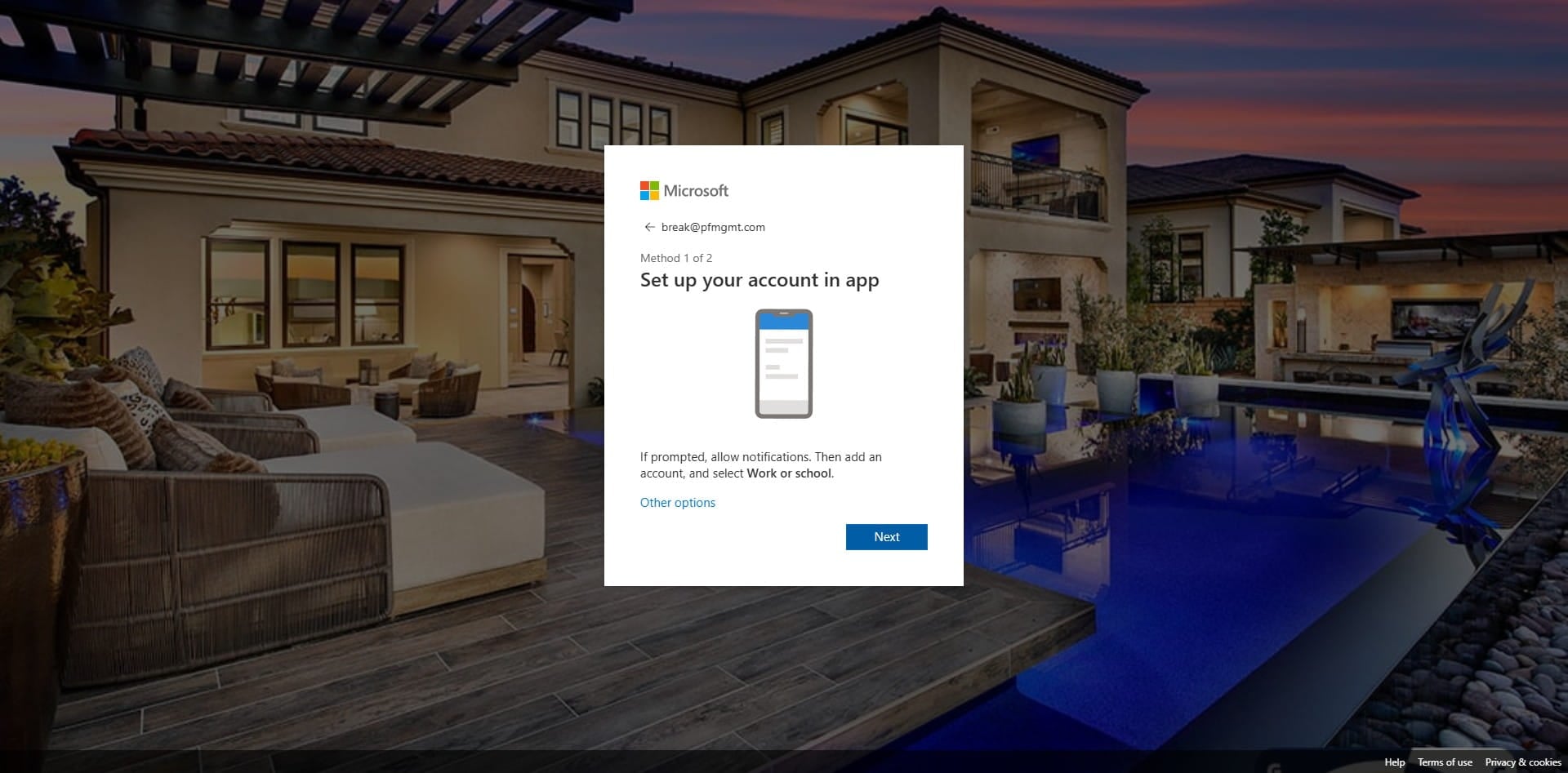
Click on "Next"
 
8

Click on "Next"

Click on "Next"
 
9

Enter the number displayed on the computer screen into your notification on your phone.
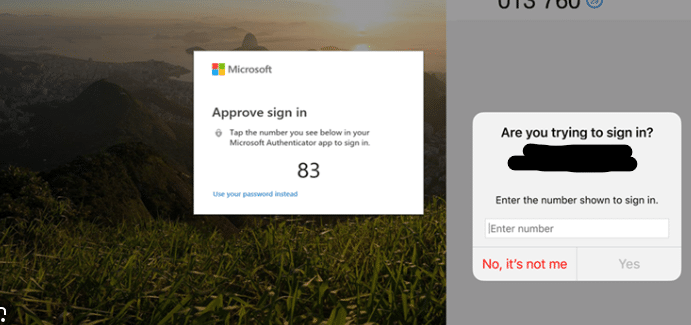
Enter the number displayed on the computer screen into your notification on your phone.
10

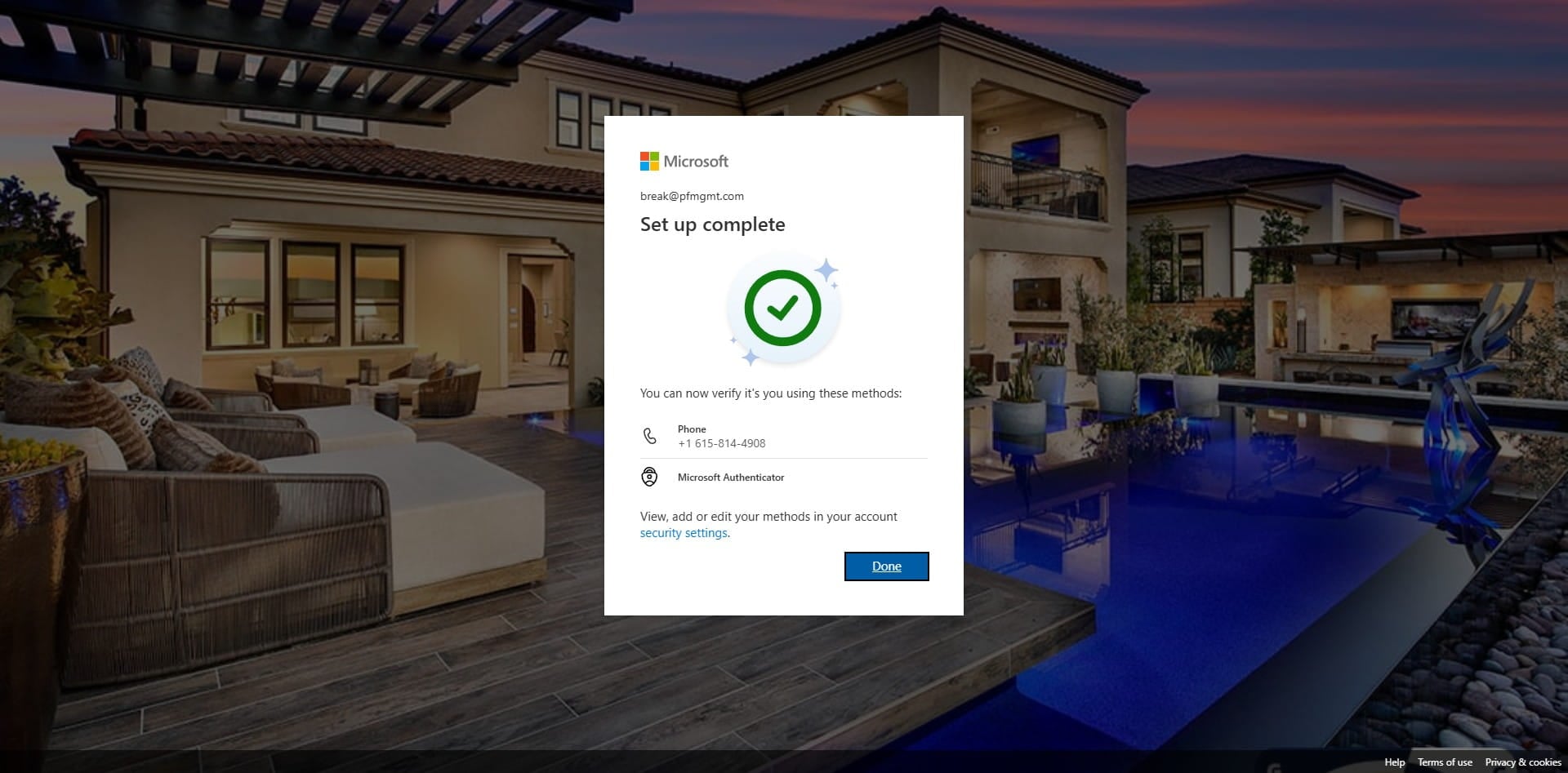
Click on "Done"
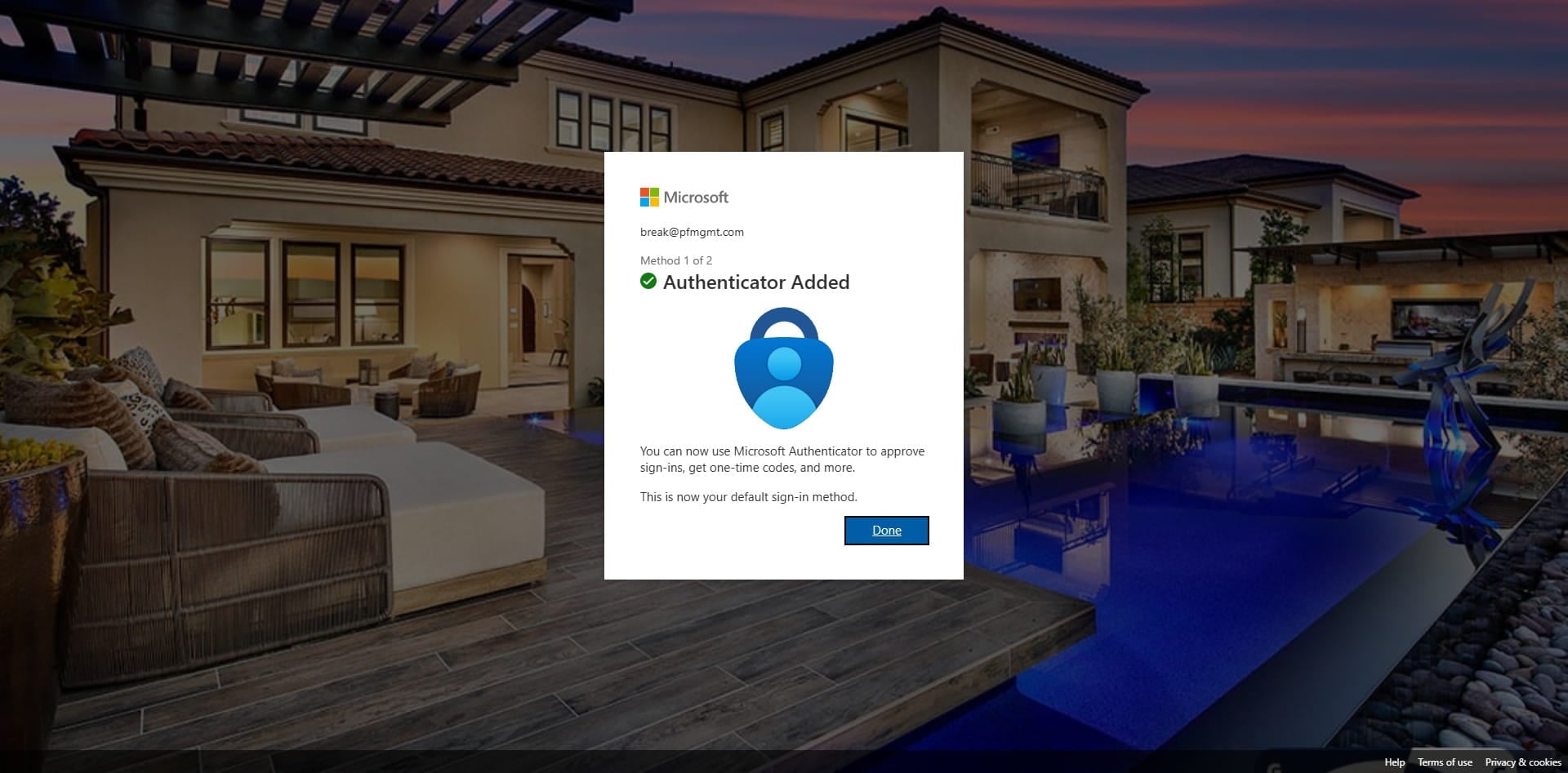
Click on "Done"
 
11

Click in the empty box and enter your phone number.
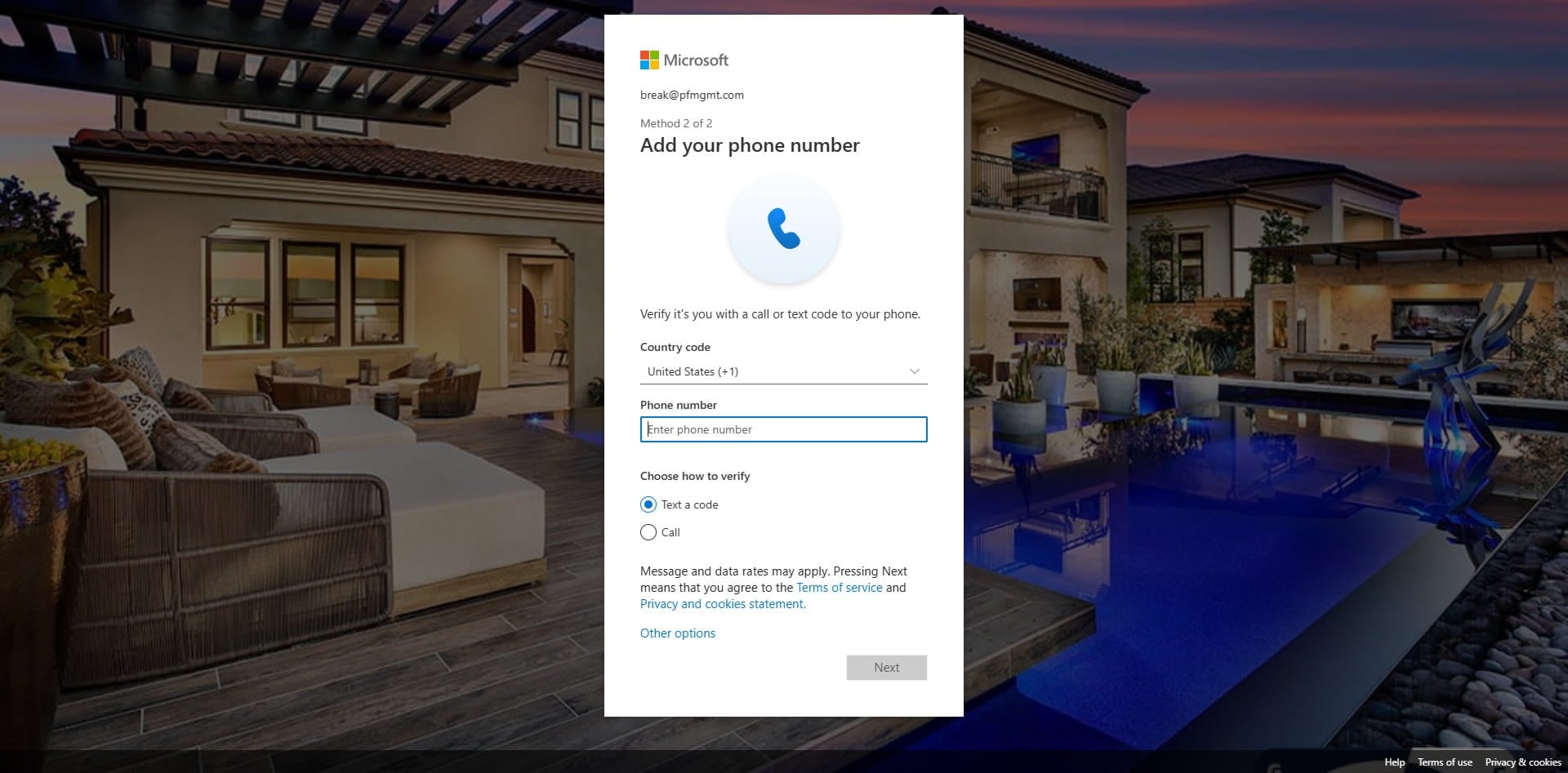
Click in the empty box and enter your phone number.
 
12

Click on "Next"
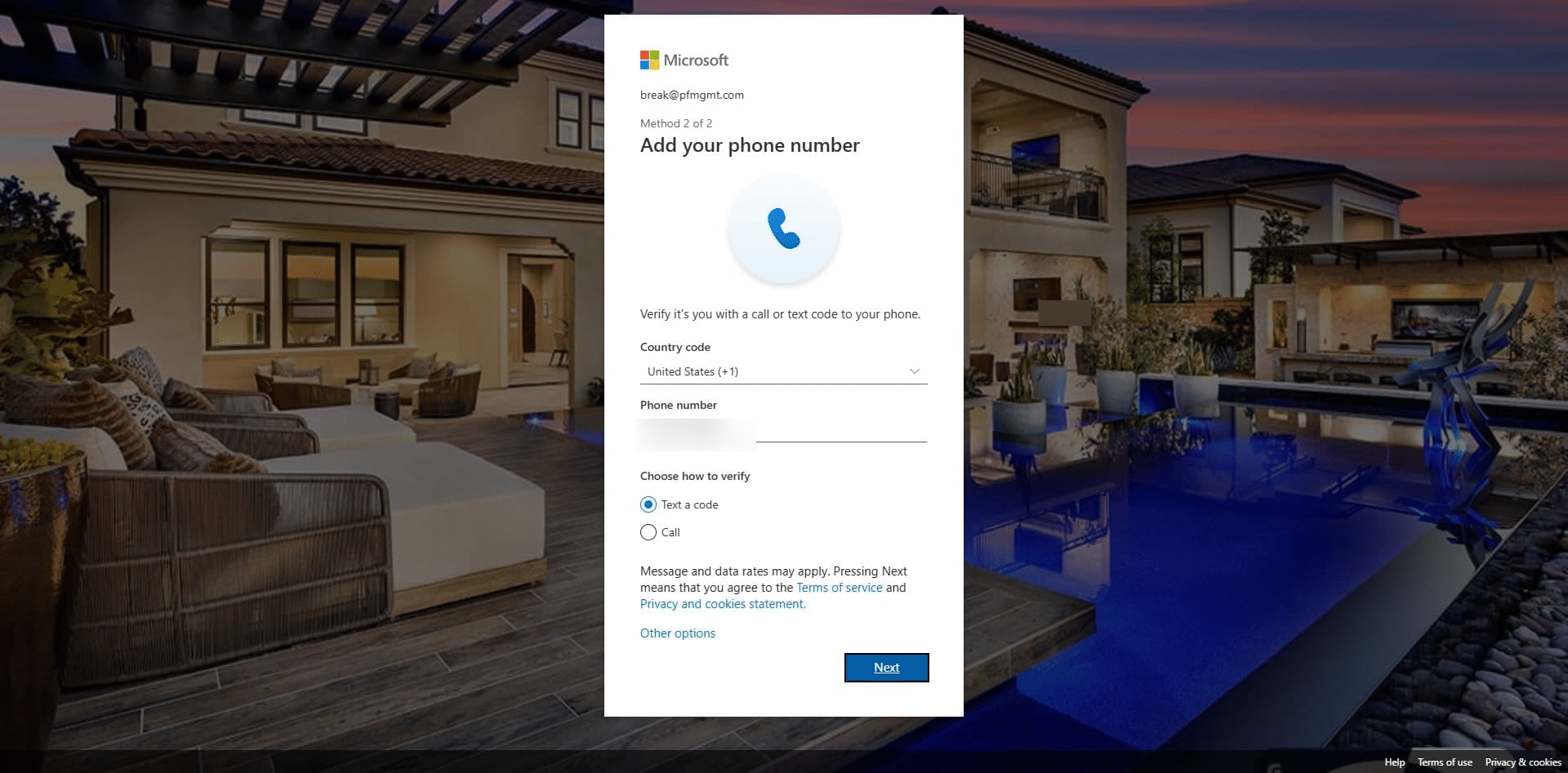
Click on "Next"
 
13

Click in the empty box.
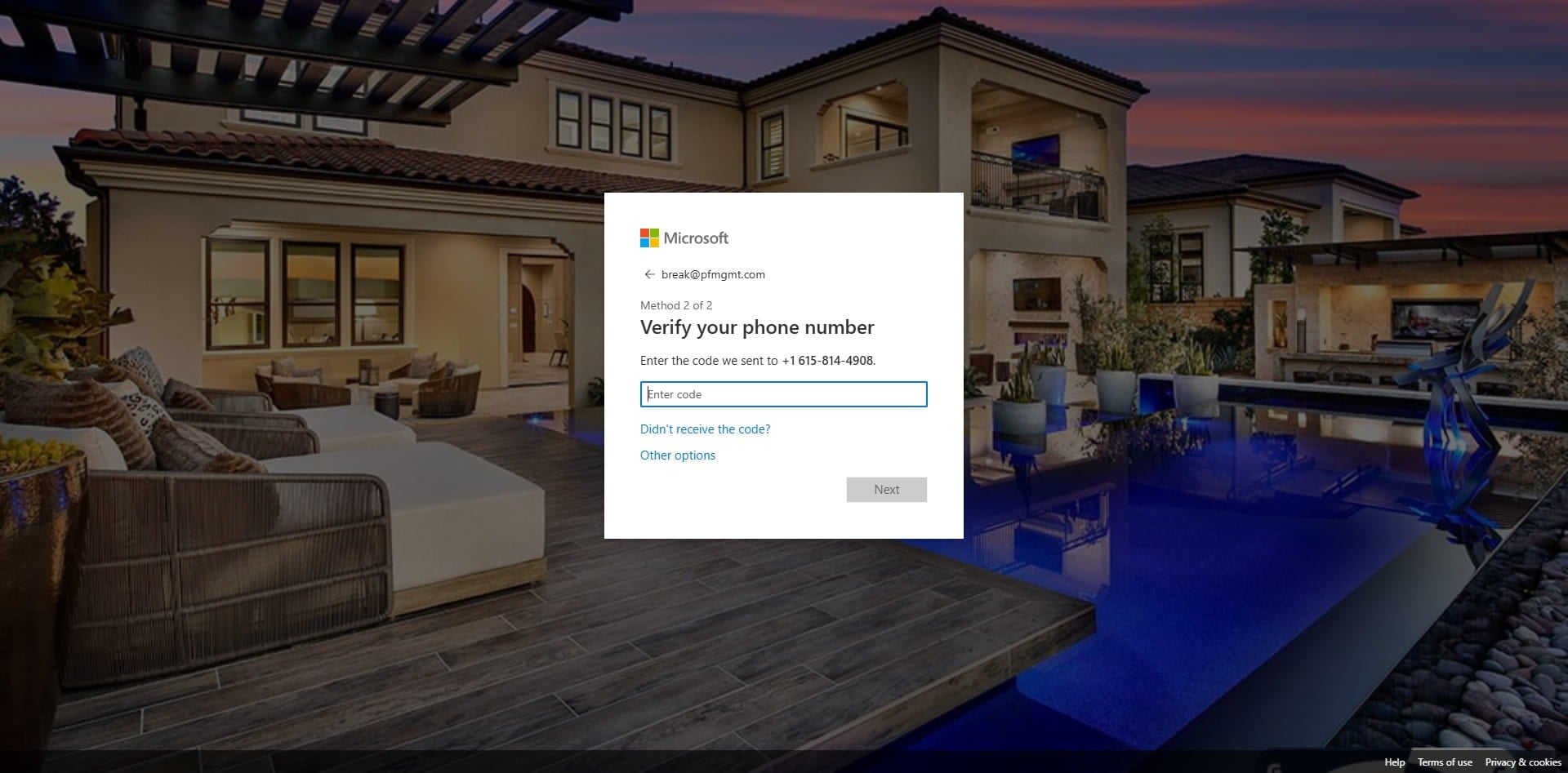
Click in the empty box.
 
14

Enter the 6-digit code your received on your cell phone and click next.
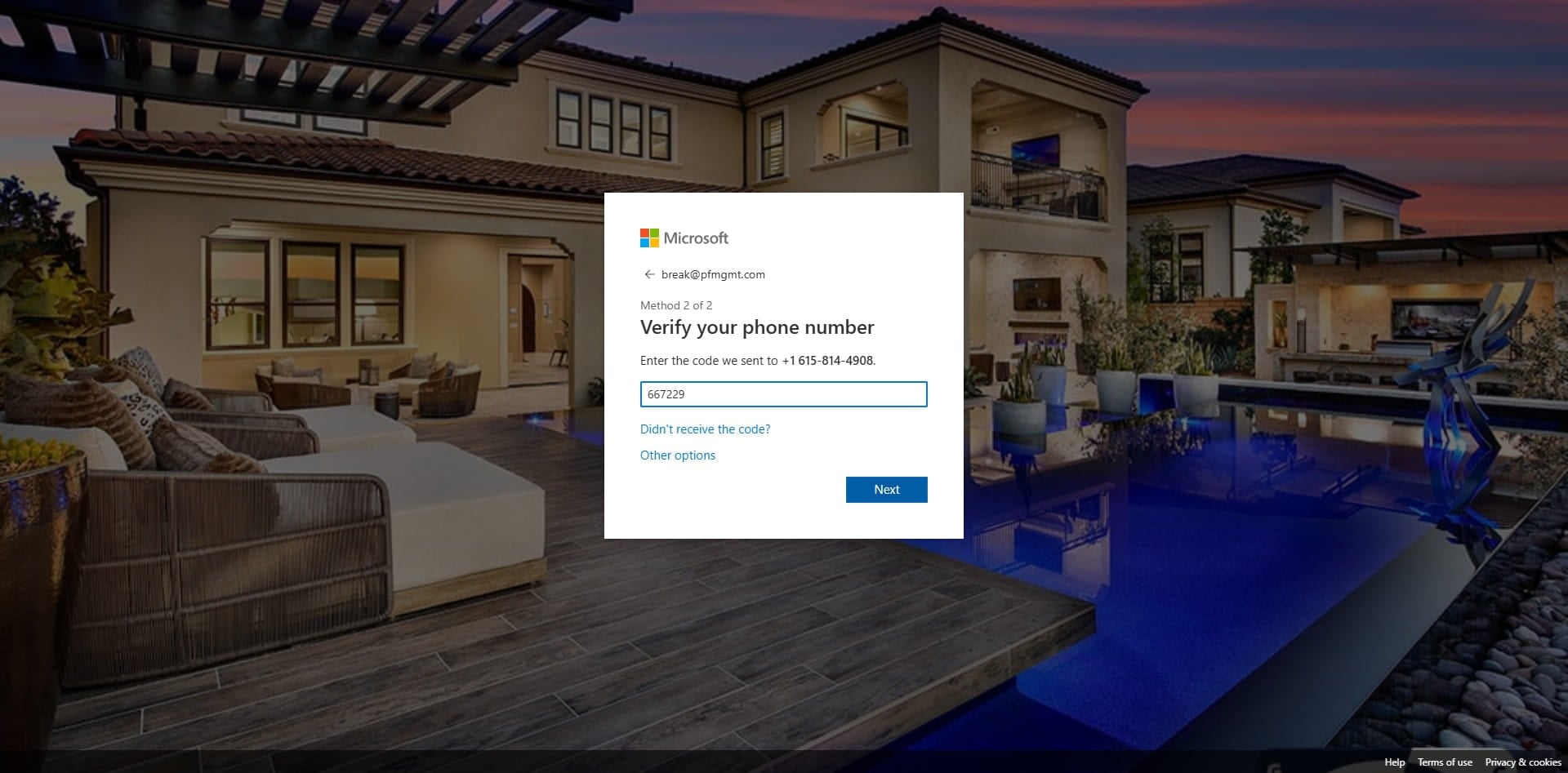
Enter the 6-digit code your received on your cell phone and click next.
 
15

Click on "Done"
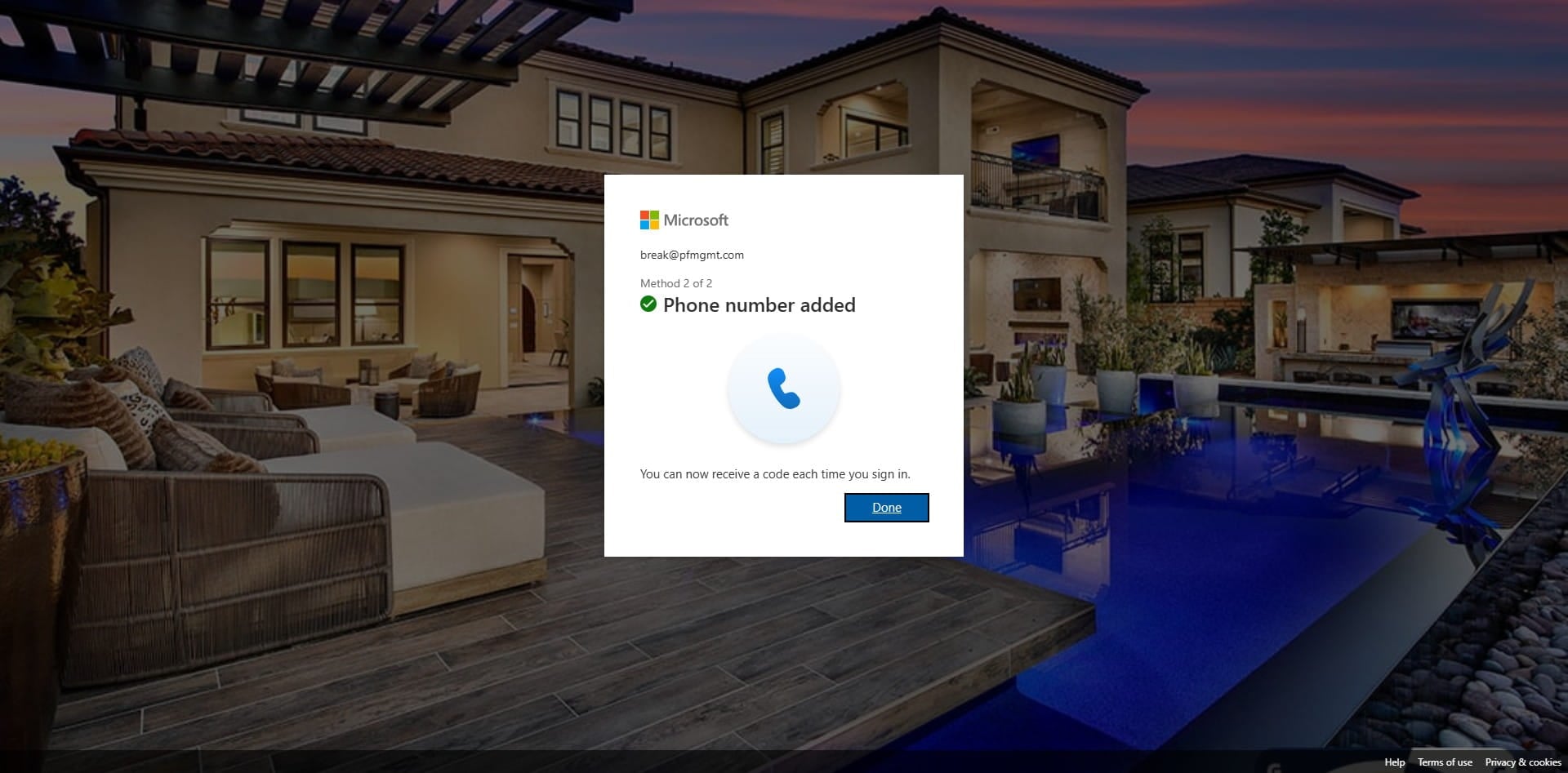
Click on "Done"
 
16

Click on "Done"

Click on "Done"
 
17

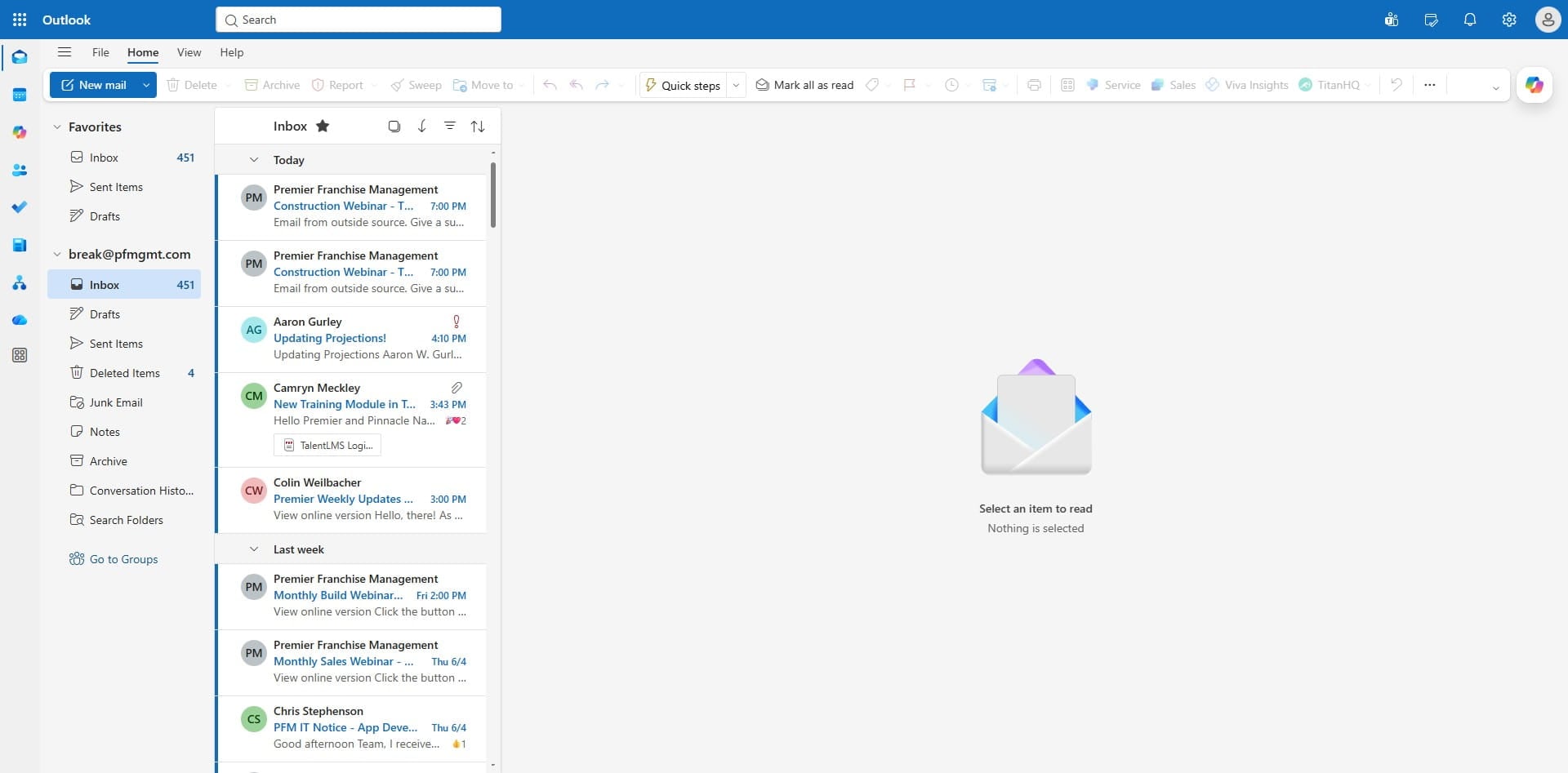
Done 🚀

Done 🚀
Feedback
0 out of 0 found this helpful

scroll to top icon