




 68
68
Add PFM Email to iPhone
- Add your Exchange account
Tap Settings > Mail > Add Account > Microsoft Exchange.
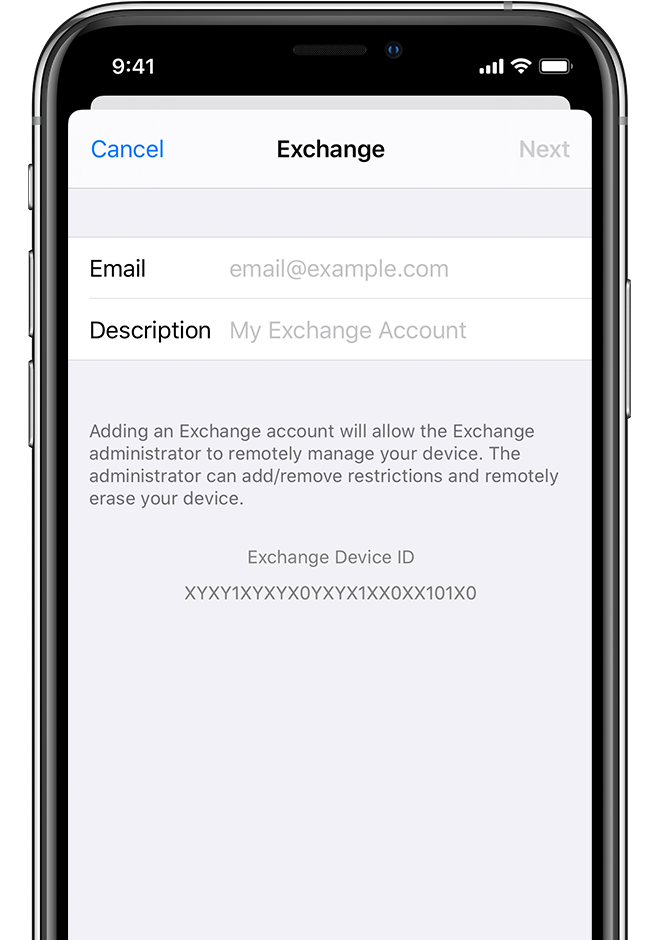
2. Enter your email address
Enter your email address, then tap Next. You can also enter an account description.
3. Connect to your Exchange Server
After you enter your email address, choose Sign In.
Tap Sign In to automatically discover your Exchange account information.
If your account uses modern authentication, you'll be guided through an authentication workflow.
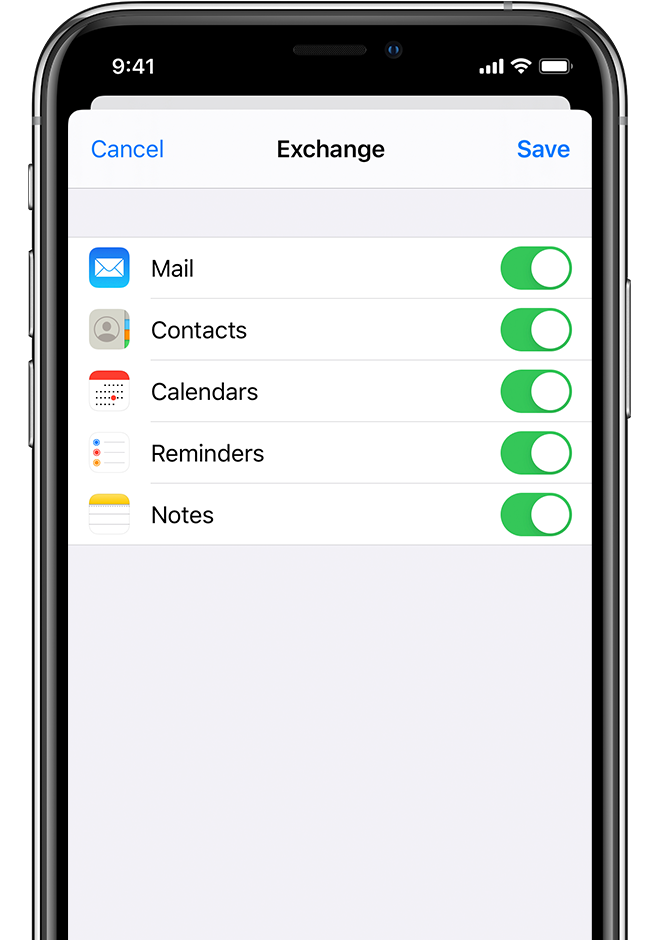
4. Sync your content
You can sync Mail, Contacts, Calendars, Reminders, and Notes. When you're finished, tap Save.
If these steps do not help, then you will have to download the Microsoft Outlook app for iPhone. Then follow essentially the same instructions above.
For additional information, check out this link: Set up Exchange ActiveSync on your iPhone or iPad - Apple Support

