




MS Teams Troubleshooting - No One Can Hear Me
Are you using MS Teams for a video, meeting, one-on-one call, and the other party cannot hear you?
Try the below quick steps to resolve your audio issues.
 Instructions
-
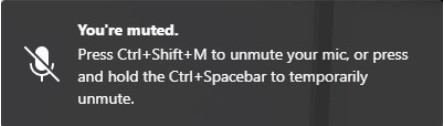
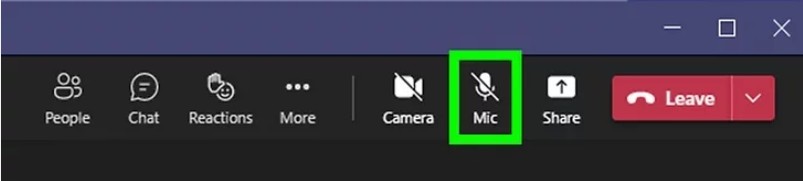
First, try to unmute directly from the Teams meeting or video call. Often the meeting organizer may set all mics to be muted upon entering the room to prevent “hot mics” and background noises. This is the quickest and most direct way to unmute your microphone. Click your microphone to unmute.
-
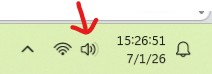
Next, check your volume meter. It is located in the bottom right location of the taskbar. Are you muted? (there will be an “x” beside the horn) If so, unmute. Can you be heard now? You can left click on the horn icon and then left click again to unmute. If you are wearing a volume-controlled headset or earpiece you can also tick the volume up and this will turn off the mute also.

volume muted

volume not muted
-
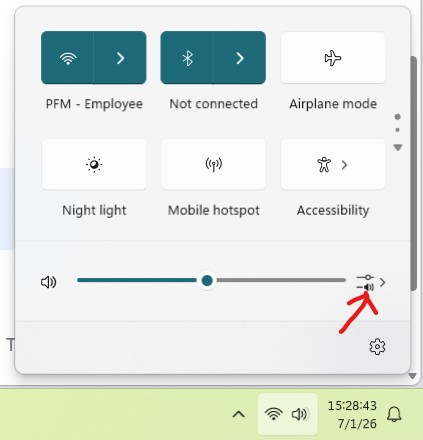
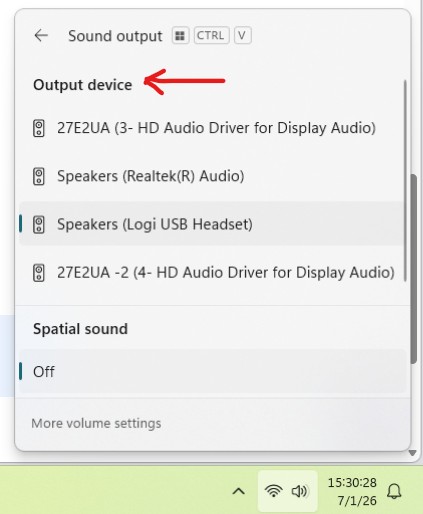
If you are still unable to be heard, check/confirm that your microphone device is selected. If you are using your laptop’s internal web cam and microphone, you will be using the (Realtek(R) Audio) driver of the computer. If you have an external web cam connected, it will have a built-in internal microphone. Look for that device name, IE: Logitech, Logi, Anker, Elgato, Emeet, etc. Next, from the task bar, confirm/select the device you are using as the Output source. (If using a laptop only it will default select (Realtek(R) Audio).
-
Next, if you are still having issues with others hearing you, check and close any other applications that might be using the microphone. If any applications are running in the background that were not previously closed, MS Teams will not be able to use your microphone or output source. IE: Slack, Google Meet, Zoom, etc.
-
Lastly, if you still cannot be heard, proceed by restarting your computer. Ensure that you save any items you are working on first before restarting. This will force close all apps that you have running in your current session and when your computer comes back up, it will set to your audio device as primary (as long as it stays connected). If using a wired headset leave it plugged in. It will automatically be recognized. If using a Bluetooth device keep it on so that it does not become unpaired. Sign back into your video call/meeting or reconnect with the other party to test and they should be able to hear you now.
Still having issues? Contact IT Support if your problem persists.
Related articles
https://support.microsoft.com/en-us/teams/meetings/manage-audio-settings-in-microsoft-teams-meetings

