



How to Access the Microsoft Web Applications - OneDrive

Getting started with the Microsoft Office web applications for the first time? Need access your OneDrive documents or share files with other people? You can conveniently use the Web applications online to find what you need. See the below steps. Having access to an Office 365 E1 license gives a user access to the web versions of the Office apps (non-desktop). The below steps will guide you on where to find the Web Applications. Specifically, when needing to edit Excel documents.
Instructions:
Open a web browser and go to outlook.office365.com.
If it does not automatically go to your Outlook email, you will need to sign in. Enter your work account email address and click Next.
Type your email password and complete any authentication or MFA steps. Click Sign in to access your Outlook webmail.
Outlook webmail should now be displayed in the browser
After signing in, your email inbox is displayed. On the left side, scroll down and select the square with 4 small squares inside it.
The icon will look like this:
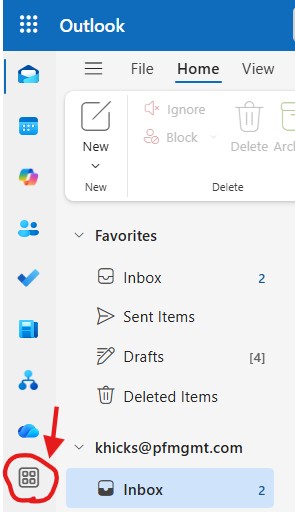
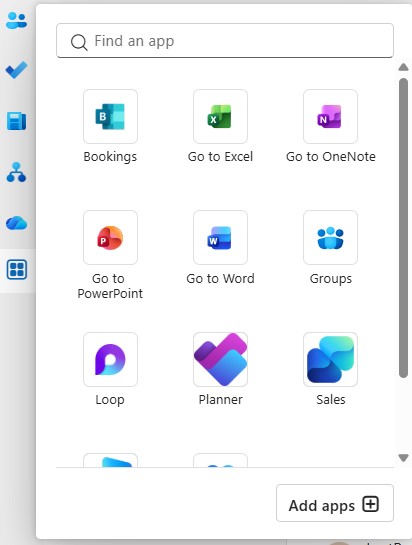
Next, type “OneDrive” in the search box where it says, “Find an app” and look for the OneDrive icon. Select it to continue. (If you are looking for a different app; Word, PowerPoint, Excel, etc. Select the one that you need)
Once found, it will look like this:
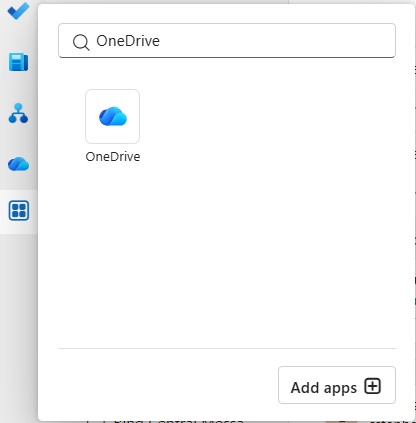
Select to open. It will now open to your One Drive documents that you have either previously started, opened, or have been working on.
Still having issues? Contact IT Support if your problem persists.
 Related articles
Set up OneDrive included with Microsoft 365 | Microsoft Support
Share files with my team members | Microsoft Support

