


How Do I Submit a Ticket in Happy Fox?
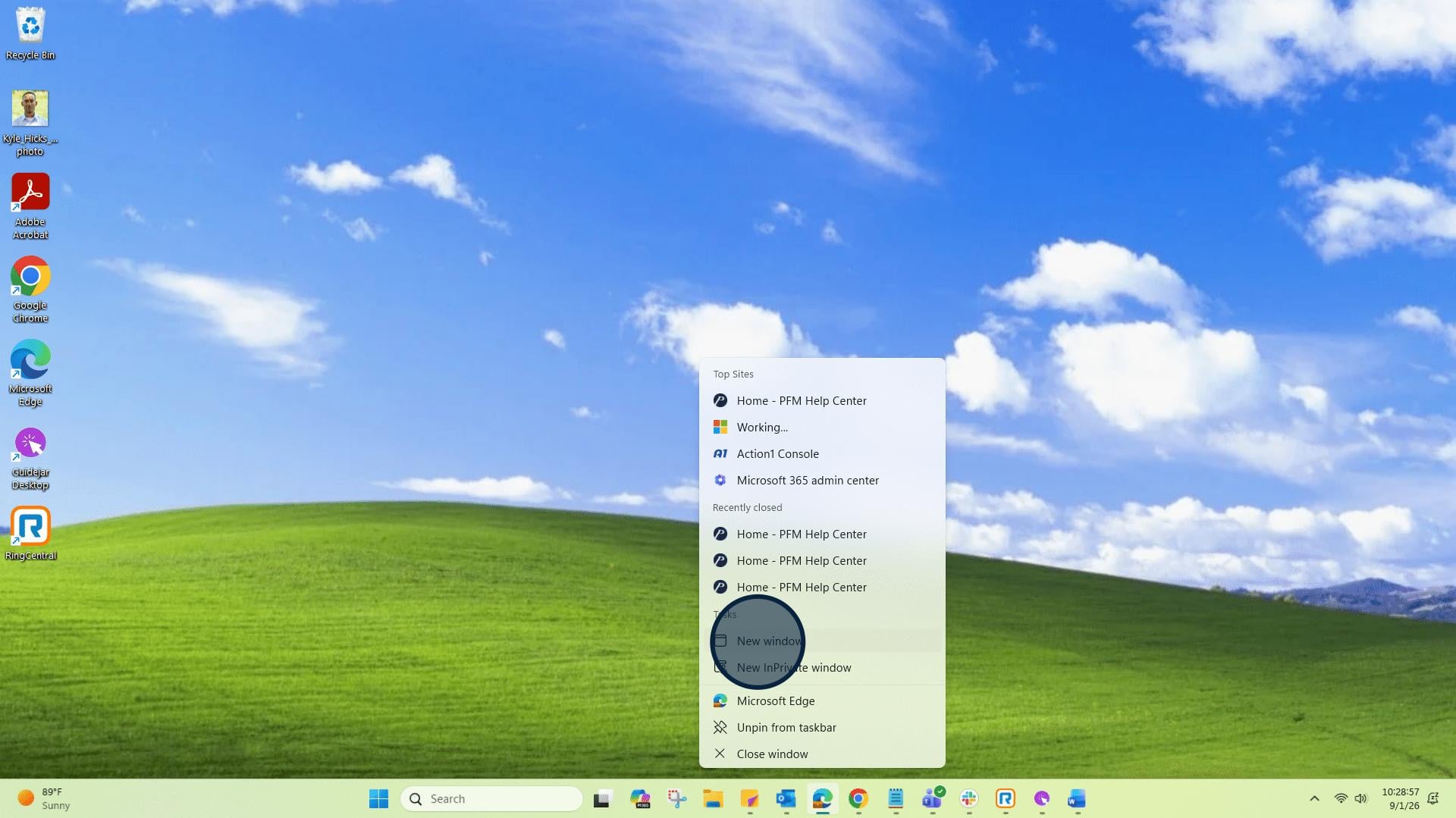
1: Using your browser of choice, click to open a "new window".
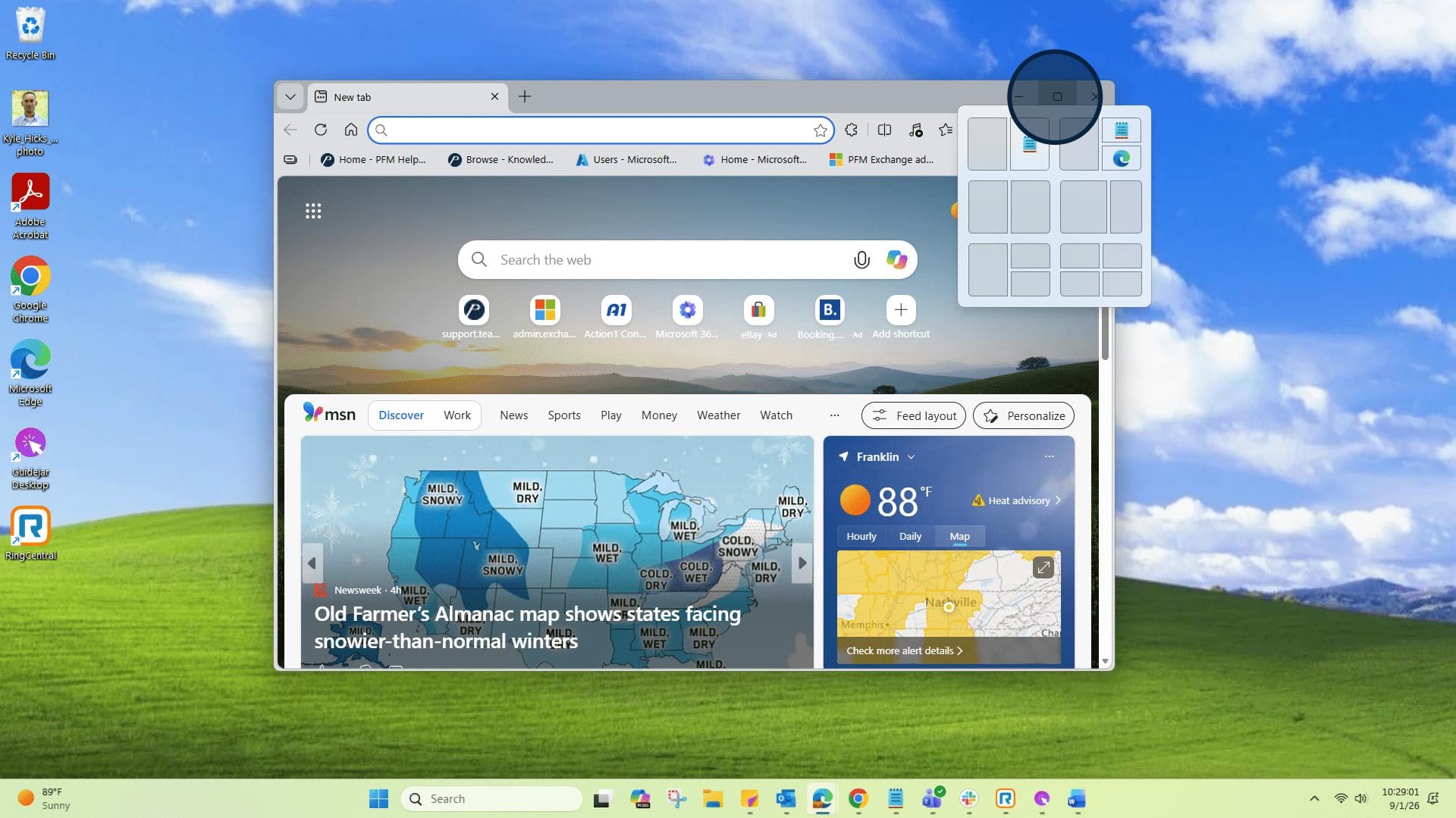
2: Open any browser address search bar of your choice. In this one I am using the Edge browser.
3: In the browser address search bar, type the URL that will take you to the PFM Help Center page.
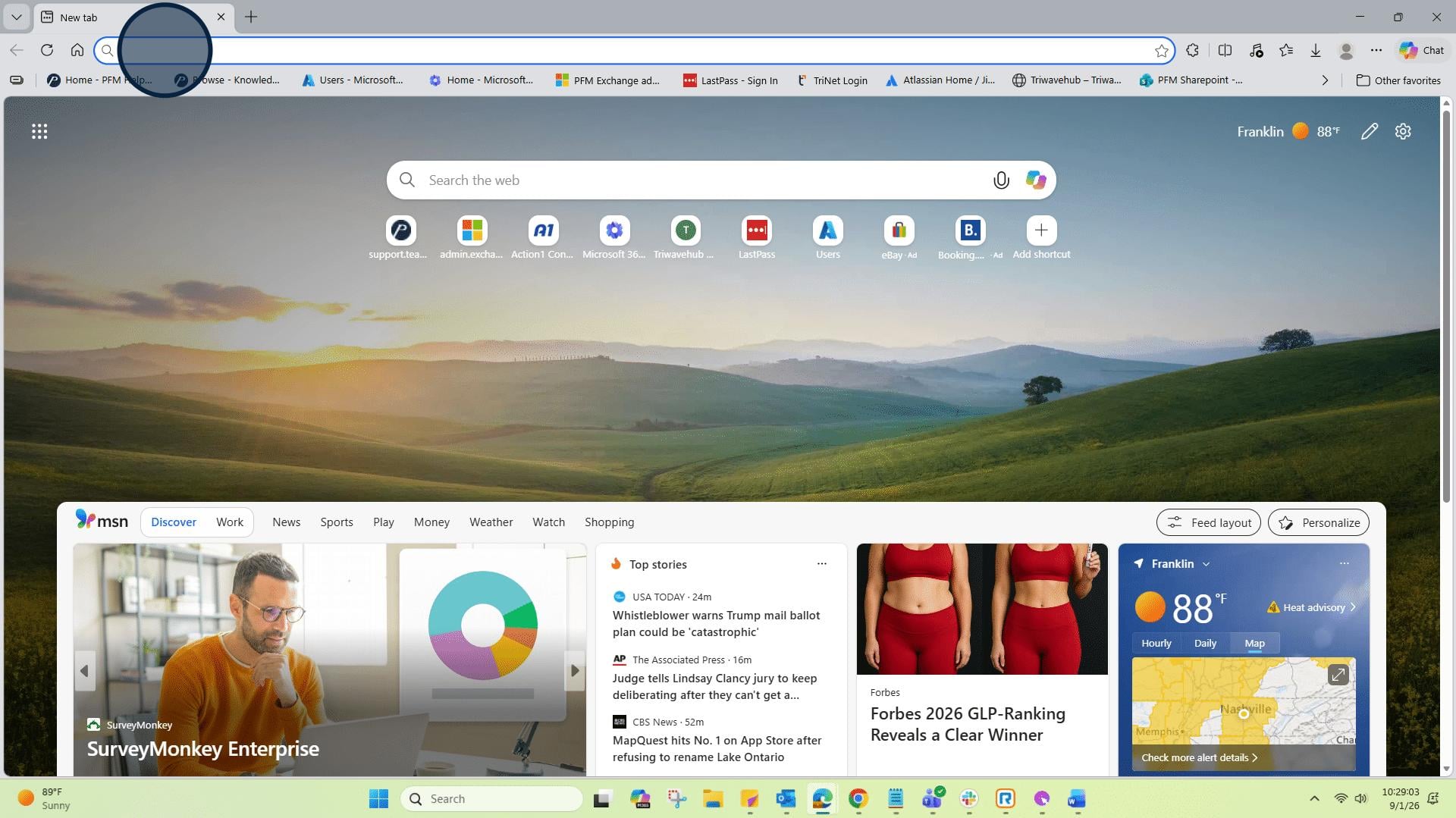
4: Click, paste, or type in a browser window: https://support.teampremierpools.com/home/
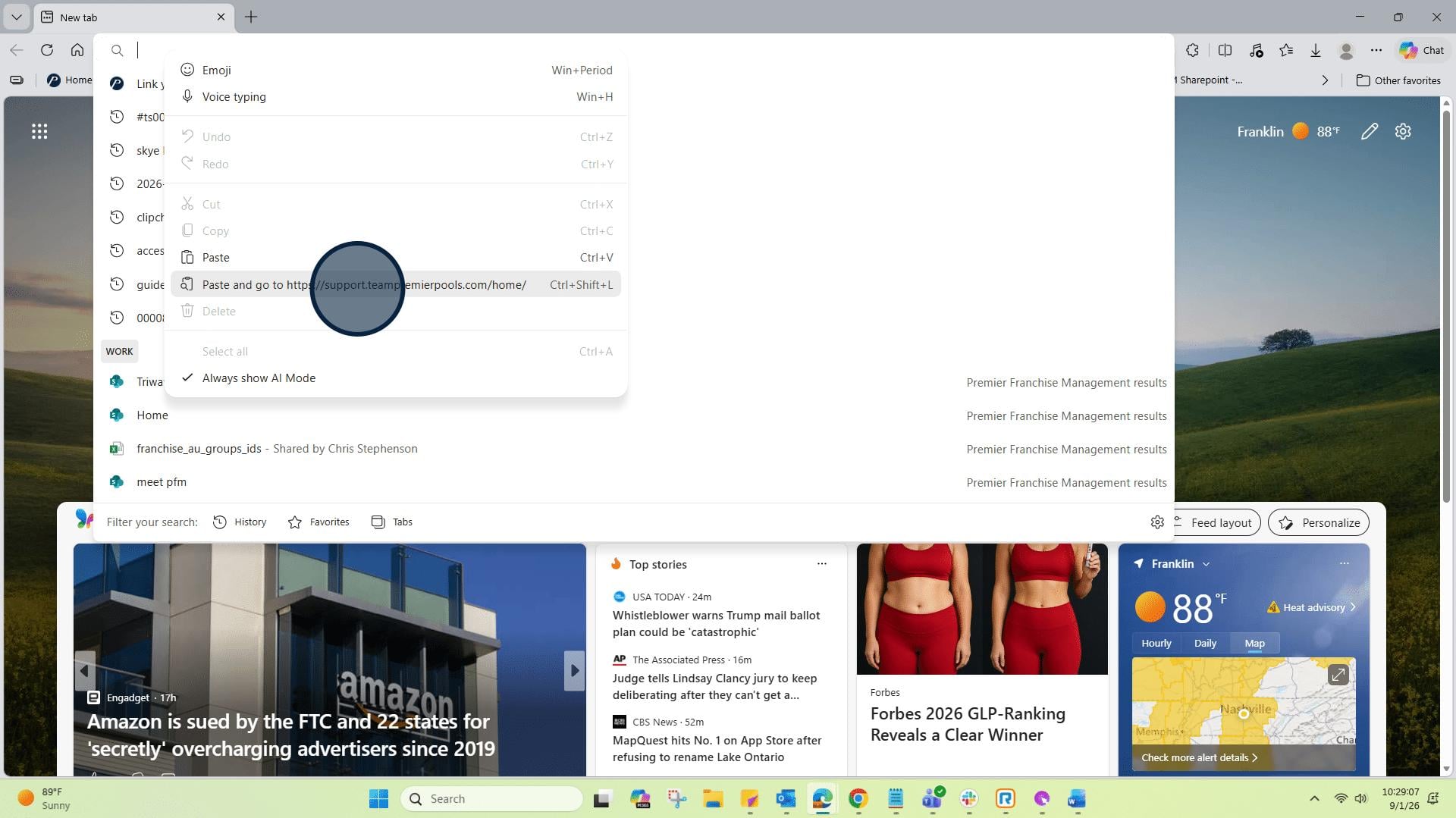
5: Click on "Login".
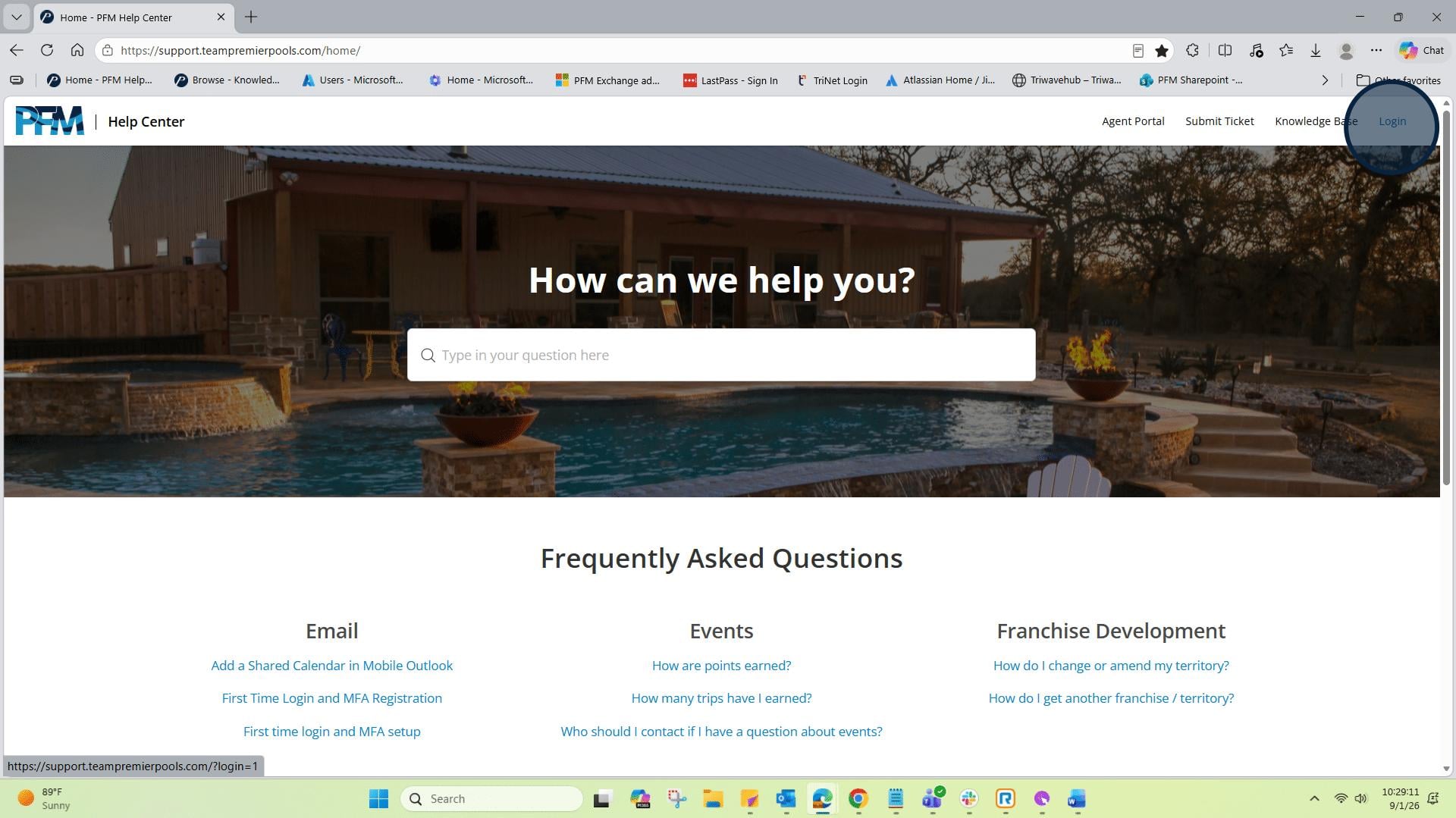
6: Click on "Submit Ticket"
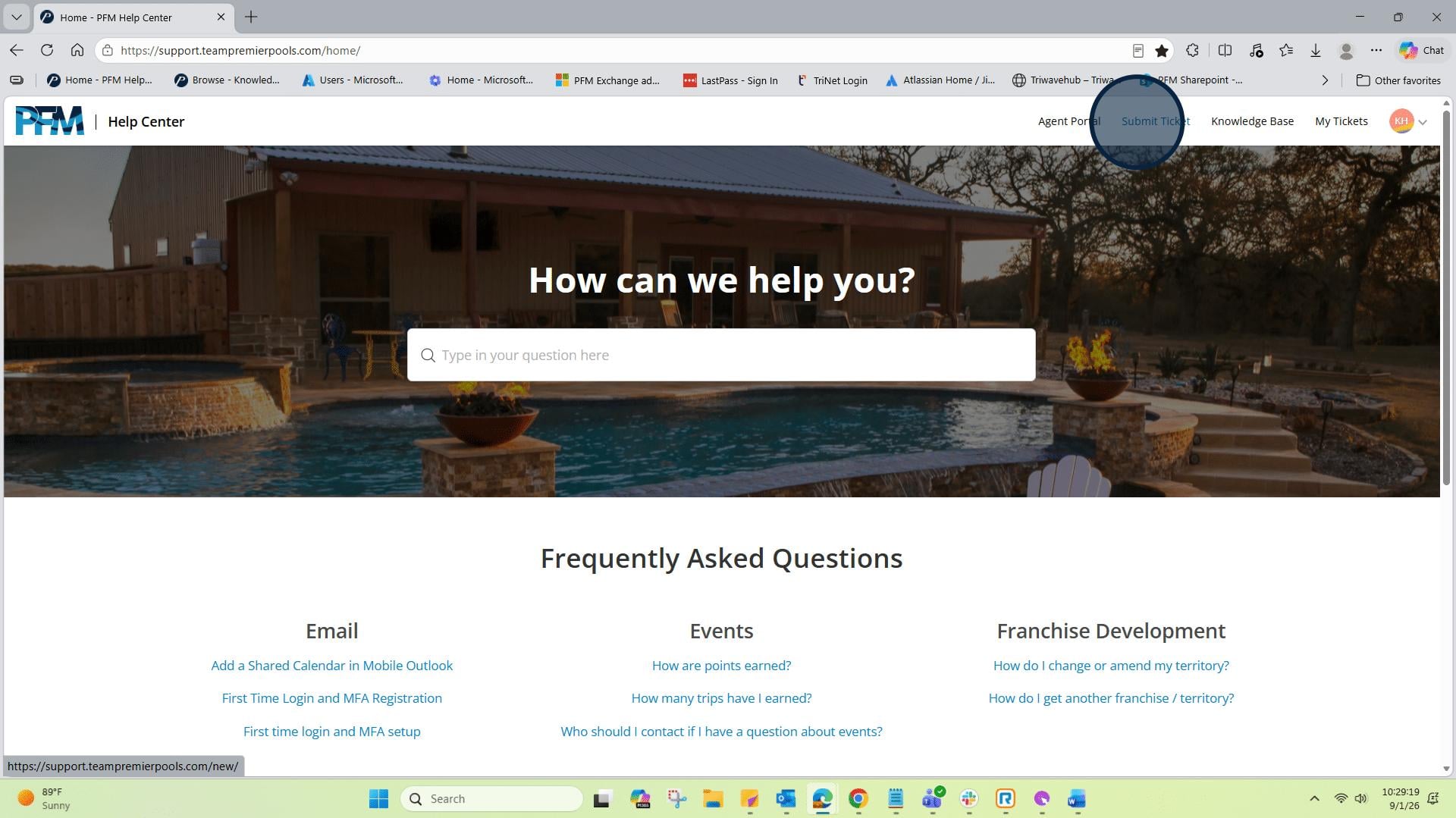
7: Next, in the "Category" space, click the drop down to select where your ticket should go.
8: Scroll through the drop down to see the different ticket Categories.
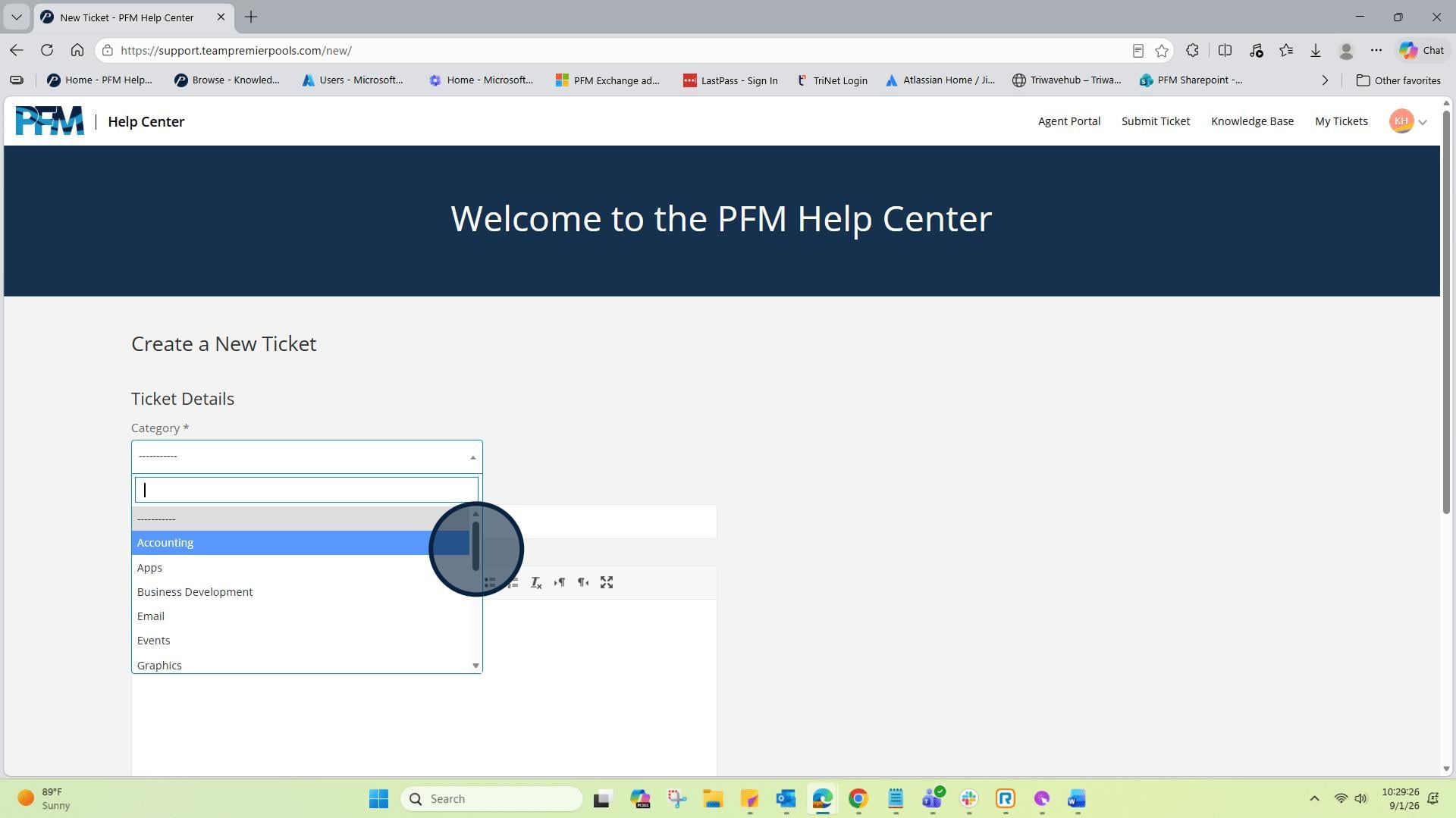
9: For this example, we will be selecting "Tech Support".
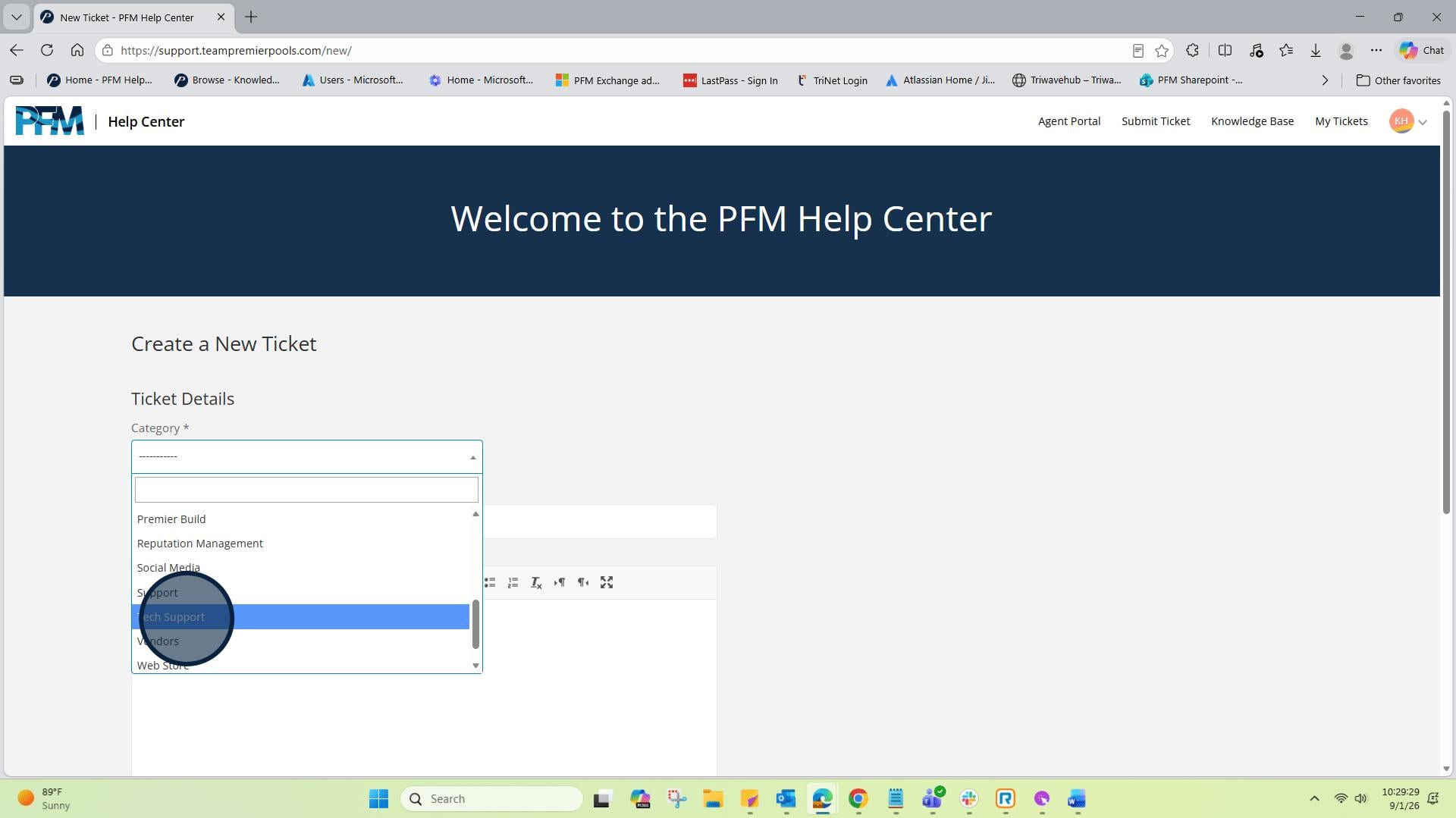
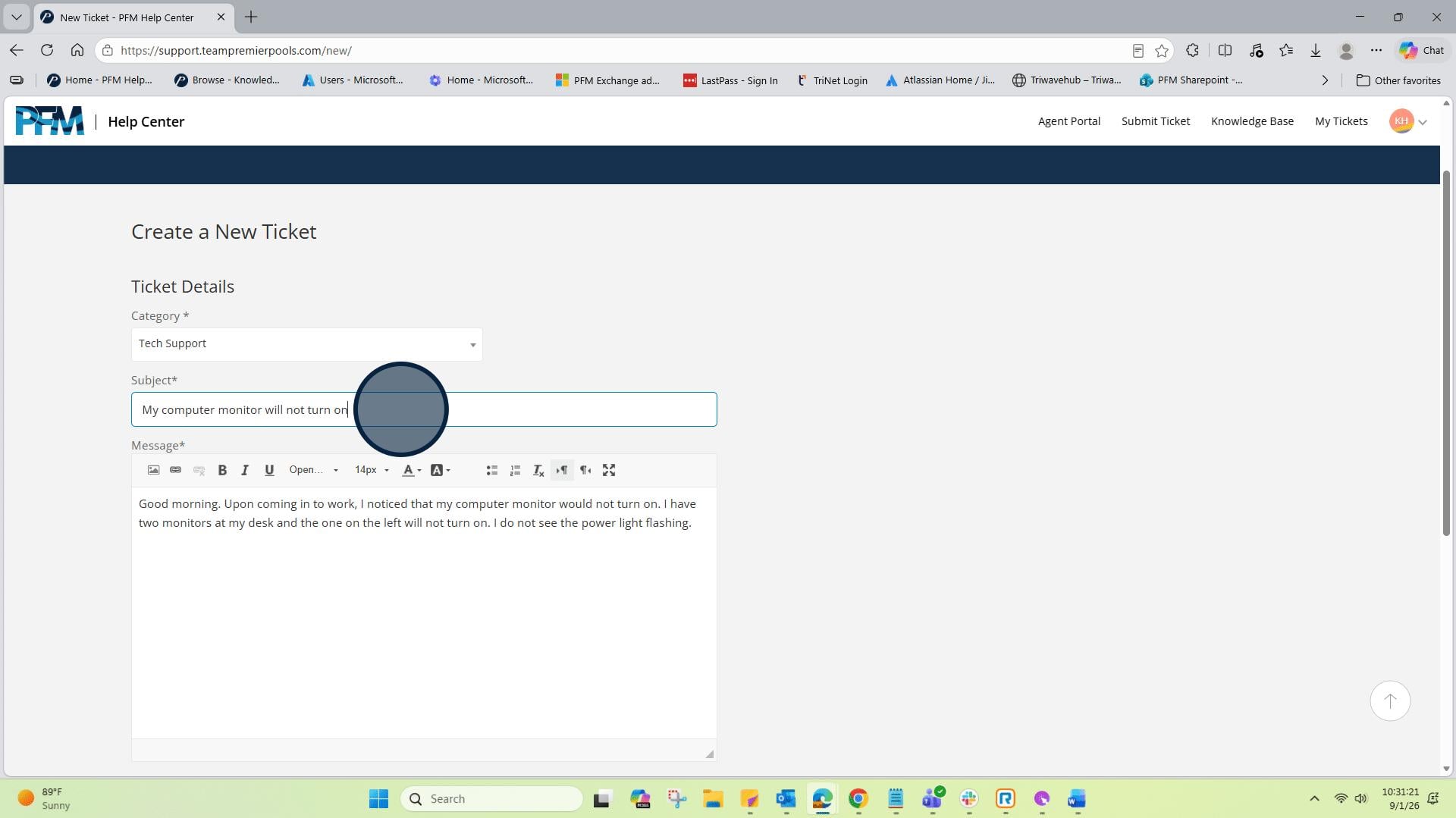
10: Next, click in the "Subject" field and enter a subject or description of your ticket.
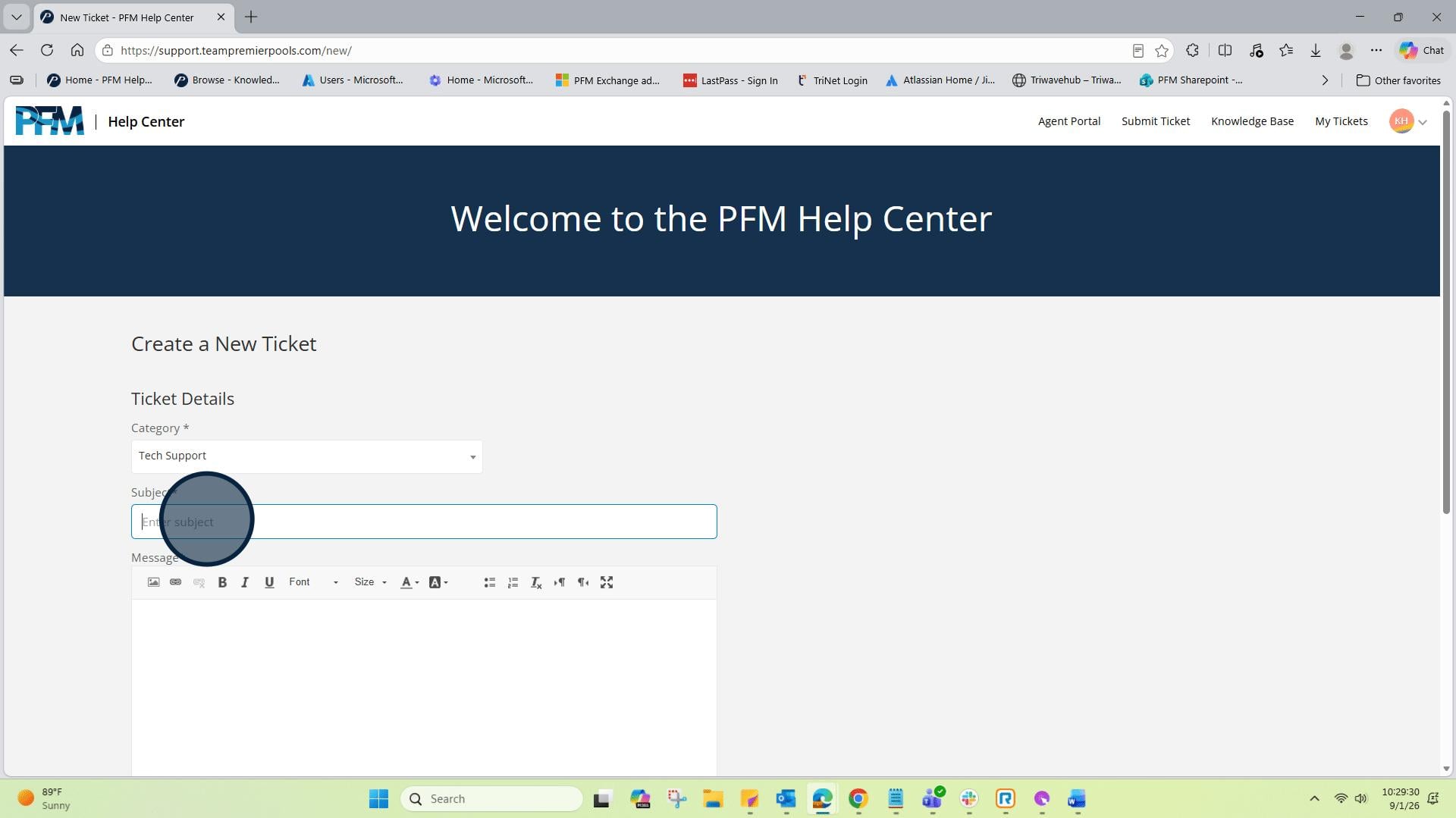
11: You will also see when you start typing, other frequently used ticket categories will appear.
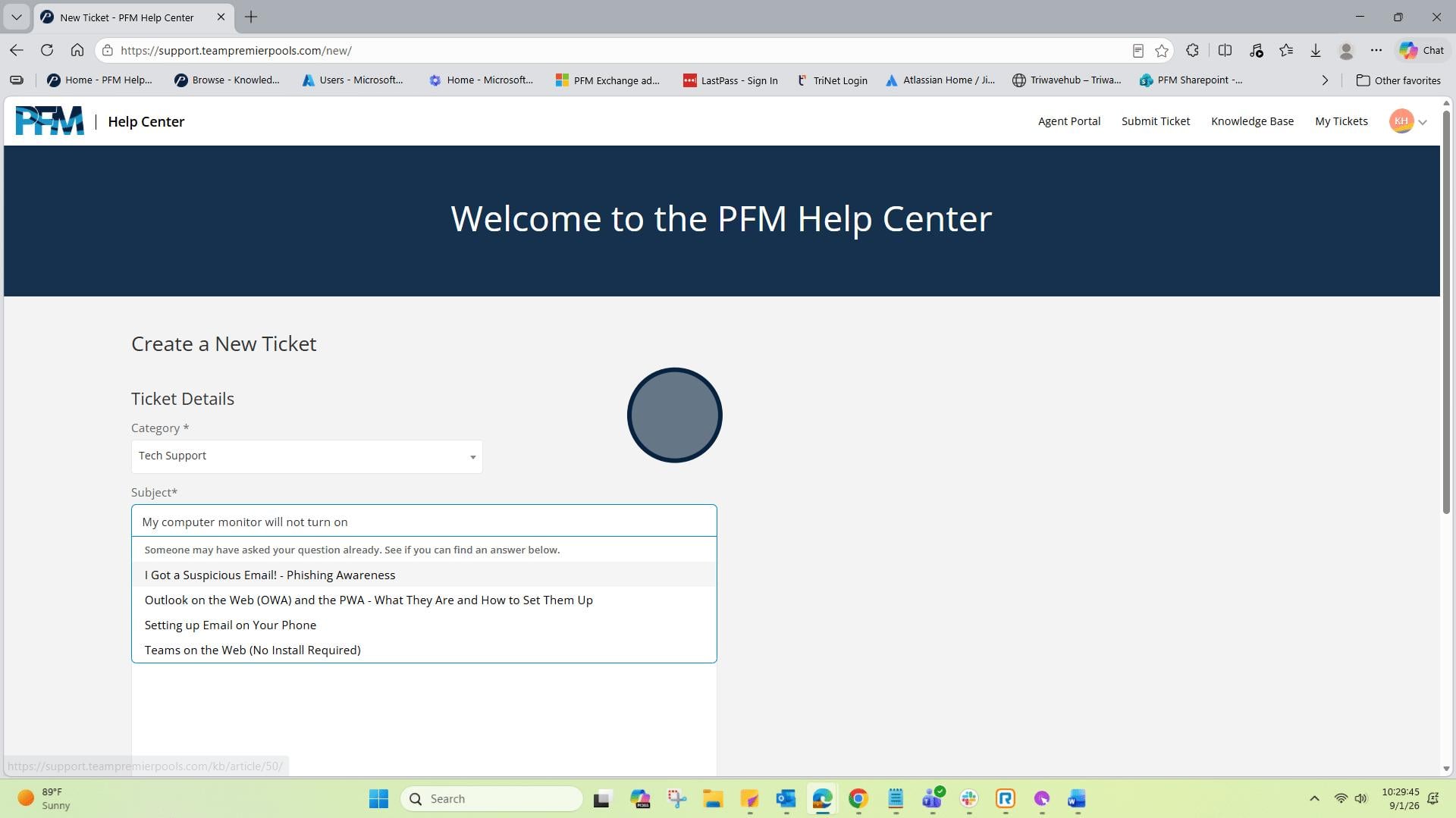
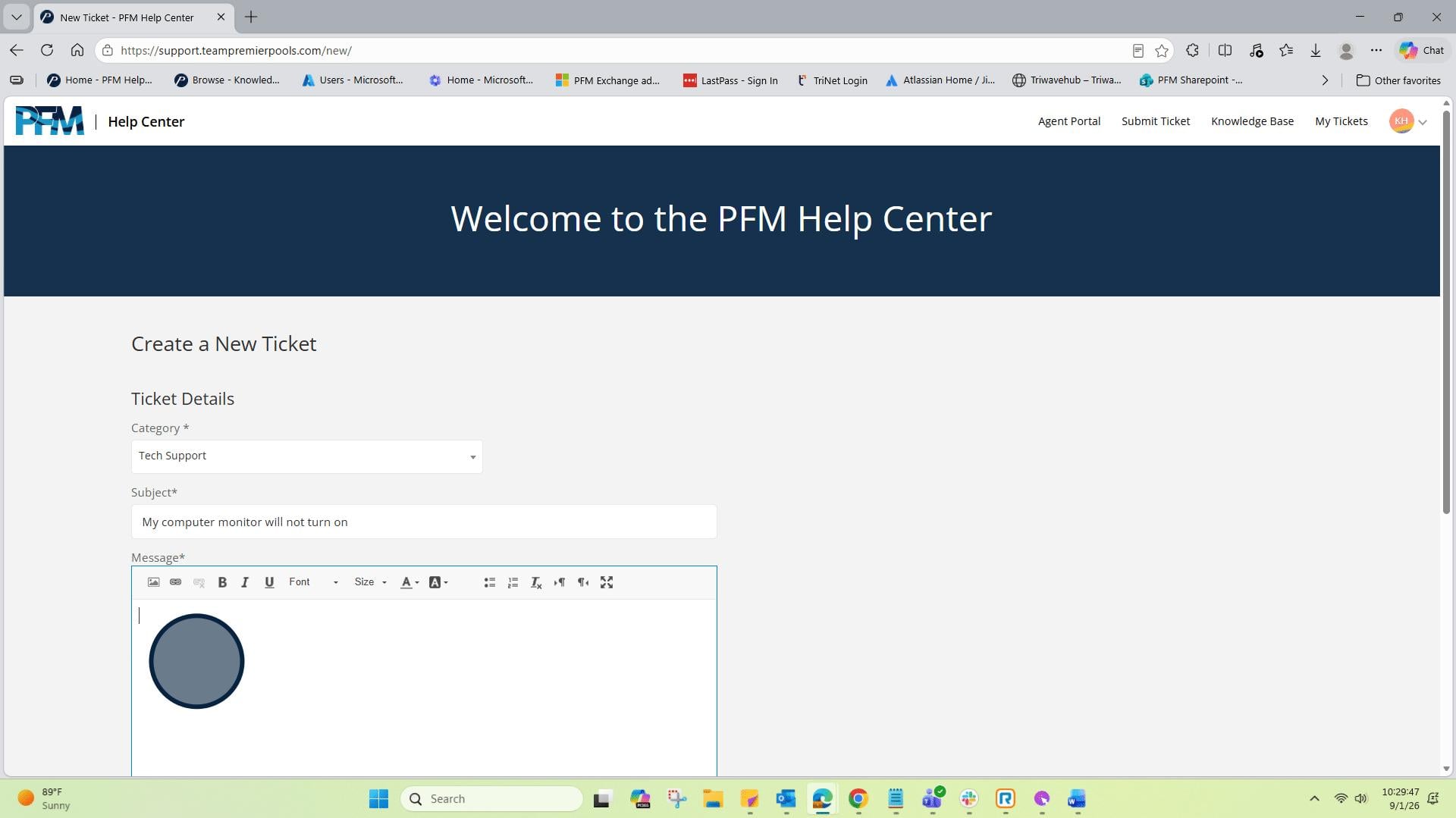
12: Next, in the "Message" body, describe the details of what needs to be done with your ticket. Leaving a descriptive message is always helpful.
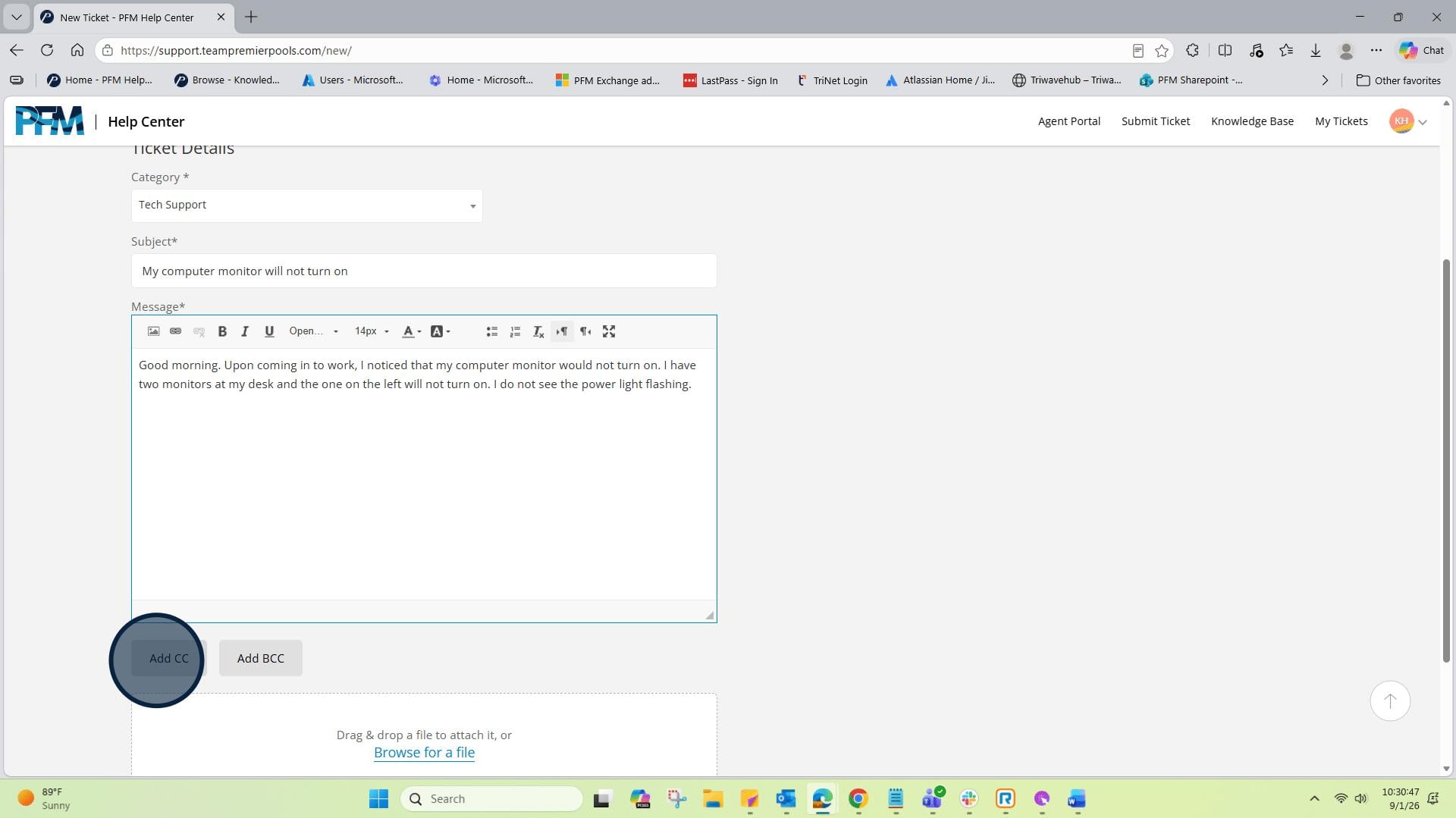
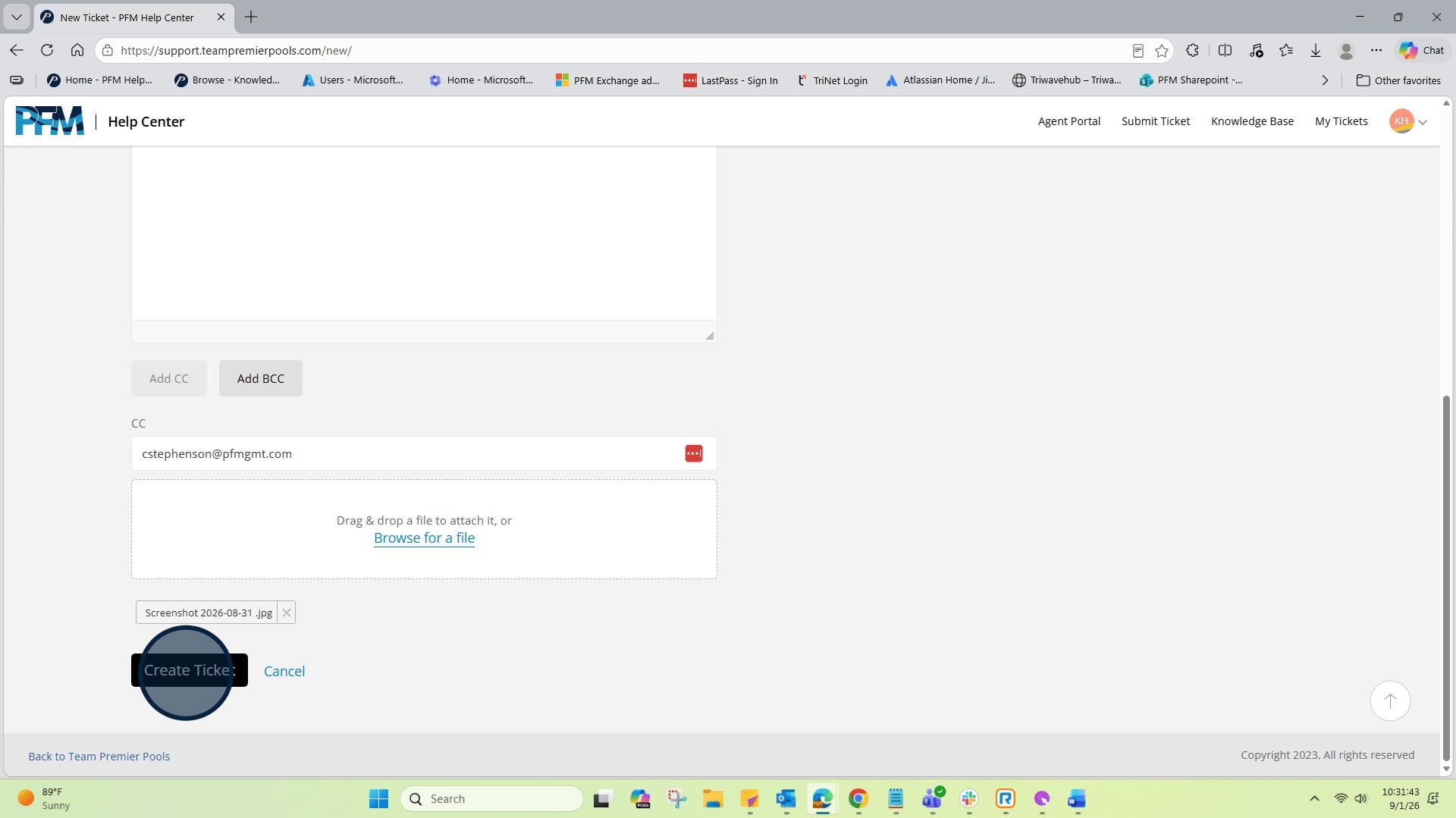
13: You also have the option to "CC" another party. This is helpful when submitting a ticket on behalf of another person. When the ticket is answered, both parties will receive the response.
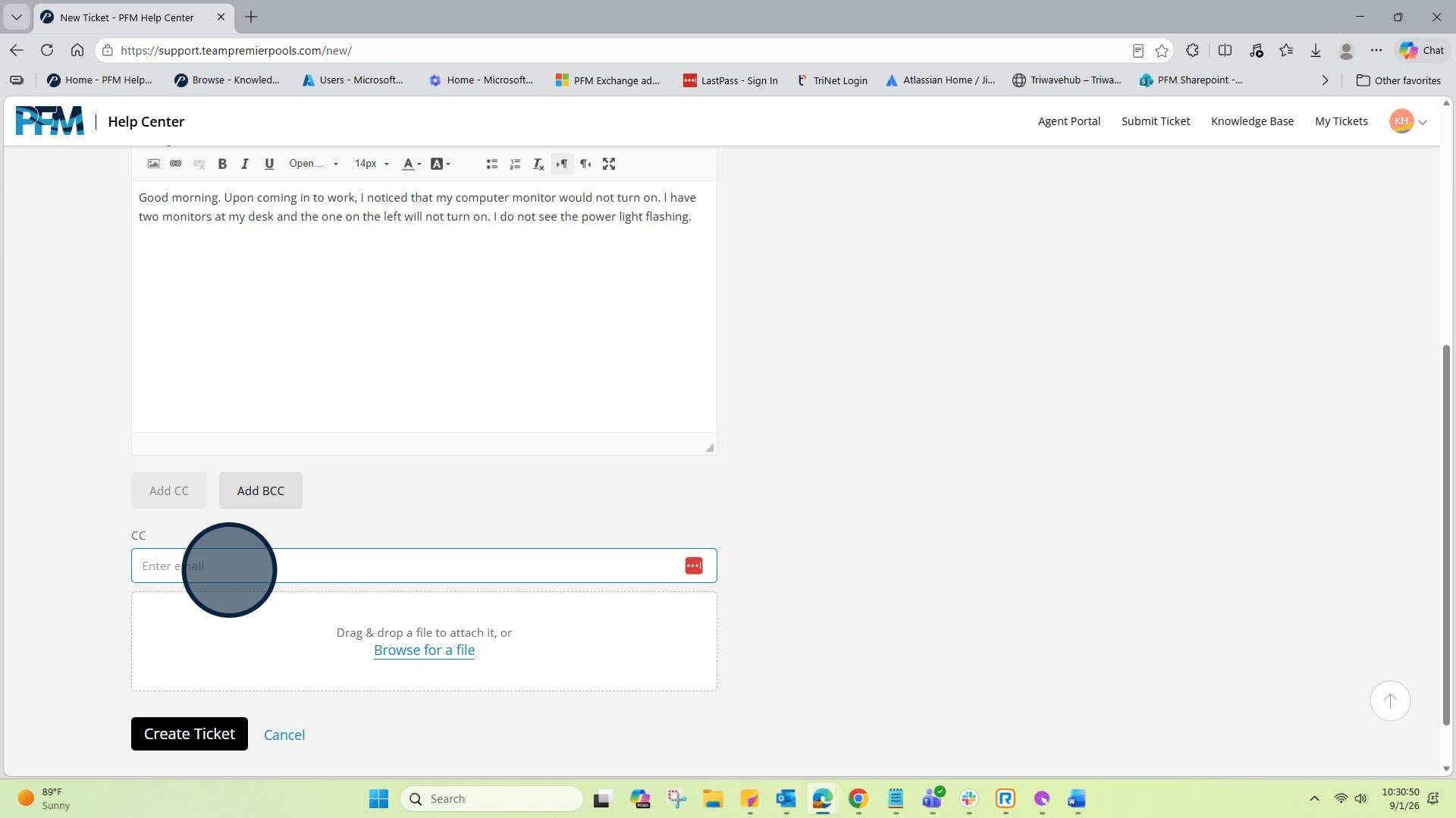
14: Click on "CC" and enter the persons email address that needs to receive the "CC".
15: You also have the option to aid a screen shot to your ticket. Click on "Browse for a file".
16: Search for the file you would like to upload.
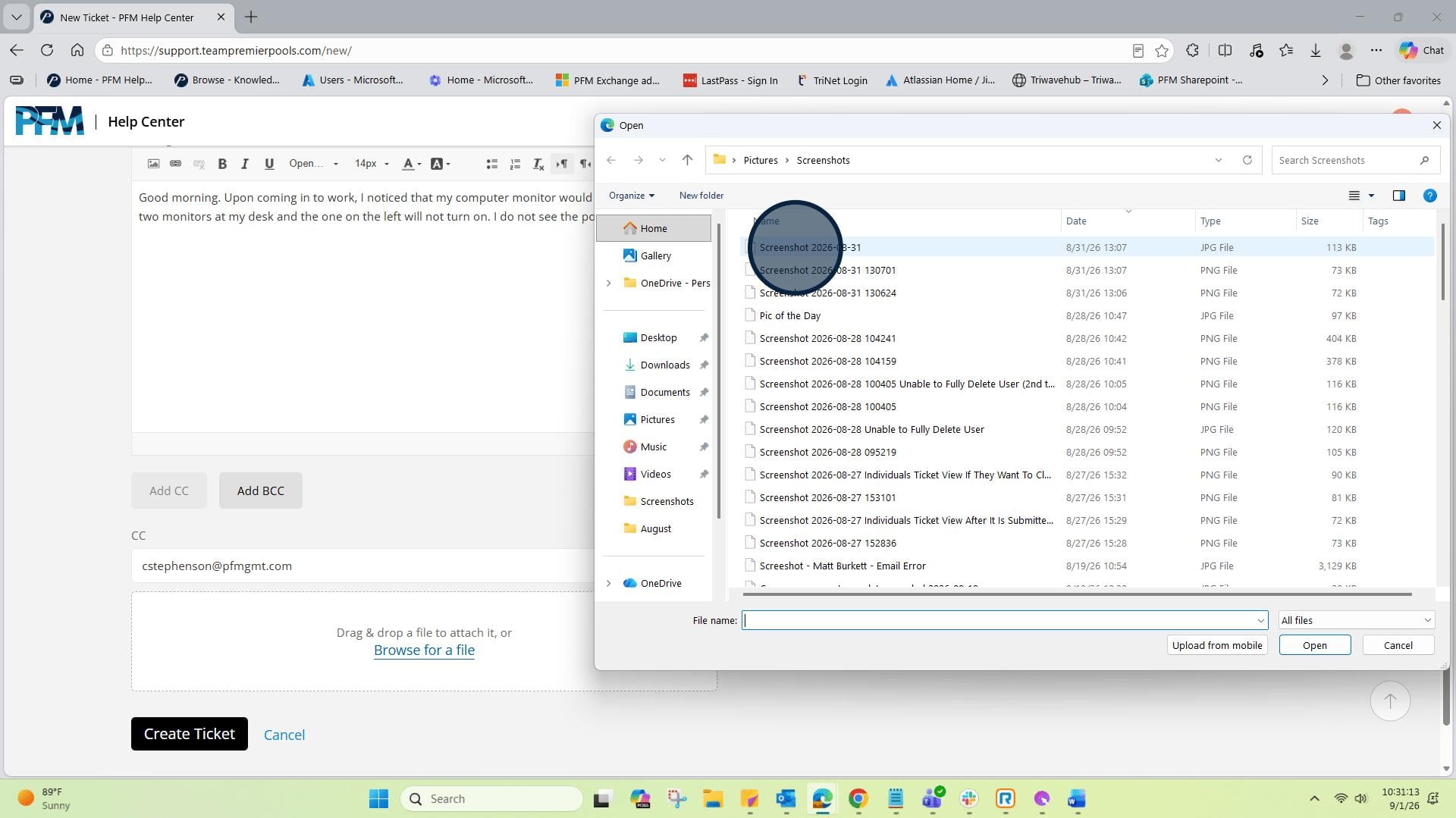
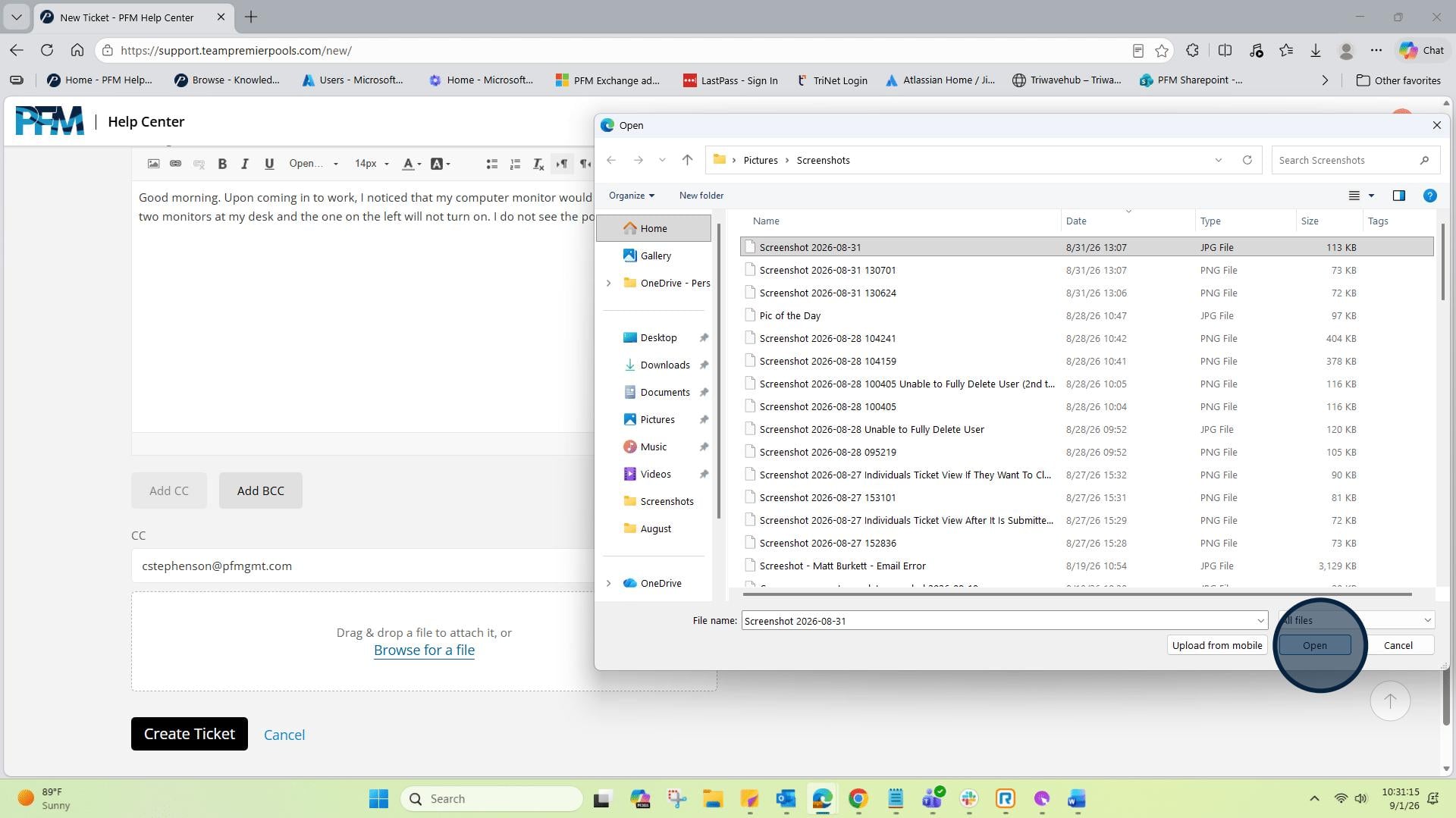
17: Click on "Open"
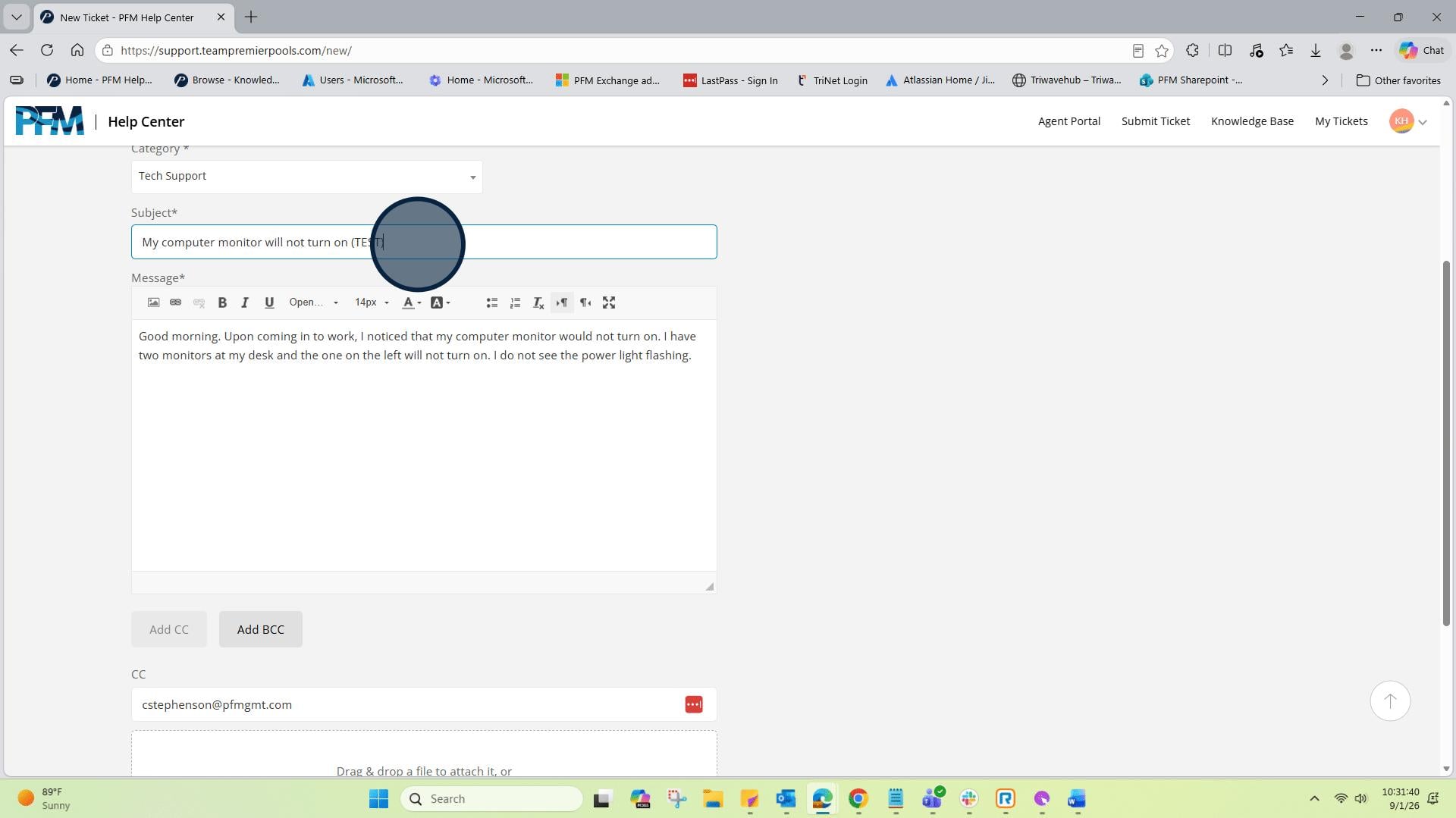
18: In this example, this will be a "Test" ticket.
19: In this example, this will be a "Test" ticket.
20: Lastly, click on "Create Ticket".
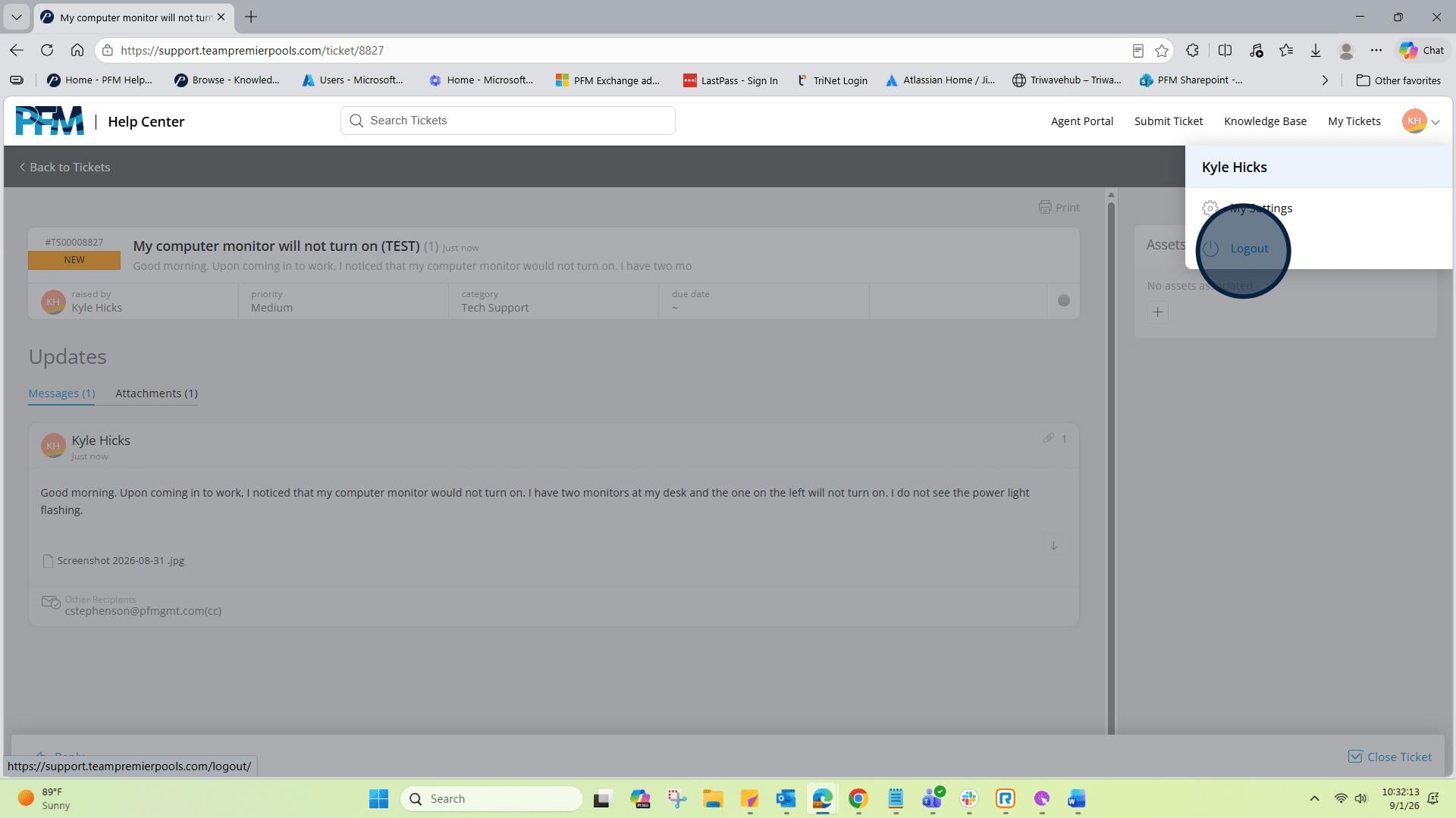
21: Next, you will then see your submitted ticket. *Tip - Record the ticket number which is above the "New" label in case you have to reference this ticket later when searching.
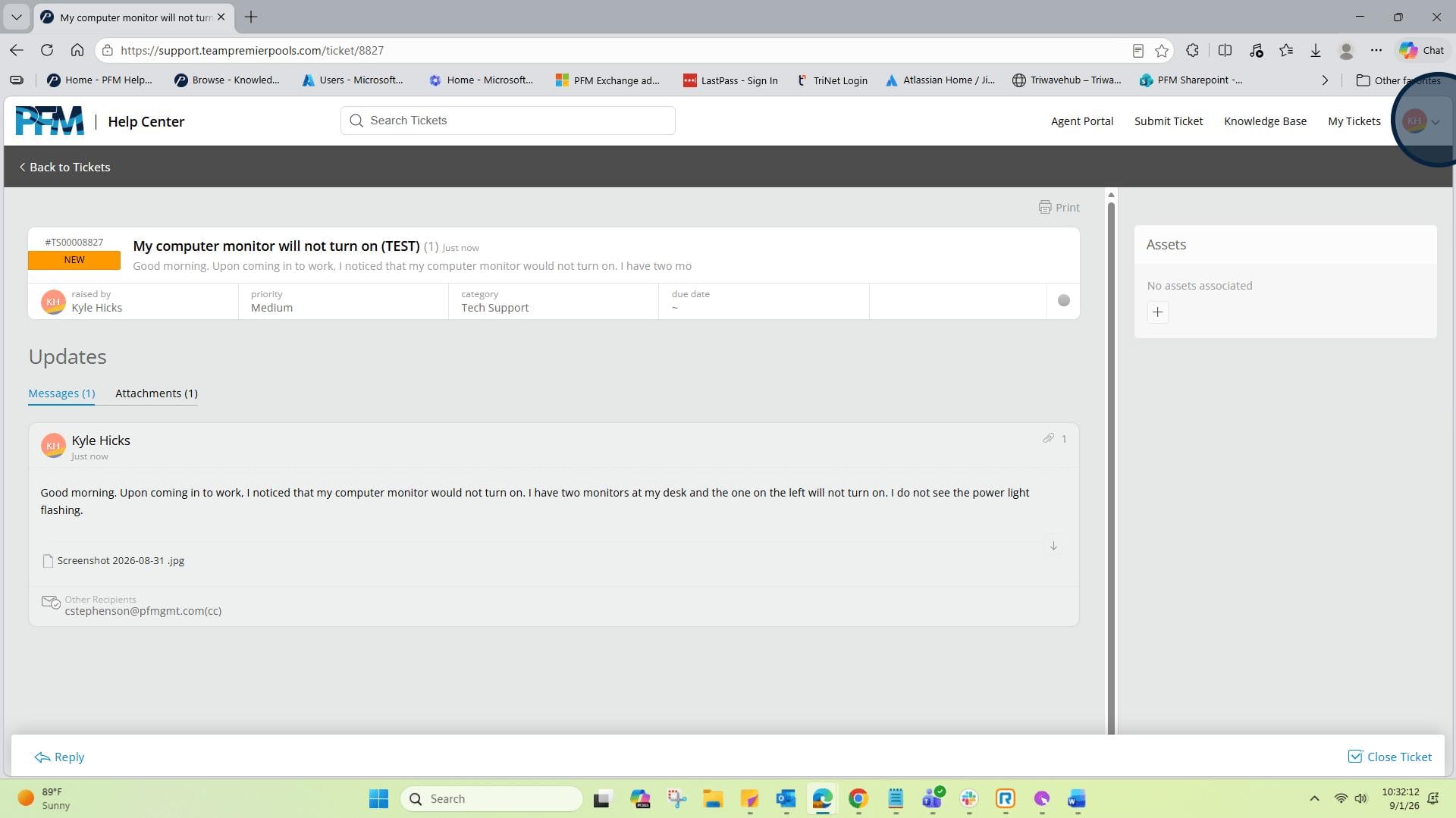
22: You can now log out from Happy Fox. Go to the upper right-hand corner, click the drop down, and select "Logout".